Templates & design
Templates and the gallery
Checked against the app on October 17, 2026
Find, create and manage your templates, the designs Adorn builds around your product photos.
What a template is
A template is a reusable design that renders across your products: a branded frame, dynamic sale and price-drop badges, and category messaging. The design is brand-neutral, so your brand comes from your palette and fonts rather than the layout preset. One template adapts per product automatically.
Browsing the gallery
Templates opens on My templates. Each card shows its design and whether it is Live, Draft or Paused. Your default template is marked Default. Select a card to open it in the editor.

Use Community Templates to add a ready-made design to My templates. Archived holds the templates you set aside.
Attaching a starter
Adorn comes with two starters. To begin a template from one, press New template and choose Standard under Start from a starter, or choose Blank template.
- Standard: the full branded frame with sale and percentage badges, price, and headline
- Blank: a minimal image-plus-frame skeleton to build up from scratch
Creating a new template
Use the New template menu to create from one of three sources. Names default to a sensible label you can rename later.

- Blank template
- Start from a starter (one of the bundled starters)
- Duplicate a template (a copy of one of your existing templates)
Managing templates
- Open a card's menu with the button at its top right corner, then choose Rename, Duplicate, Archive or Delete.
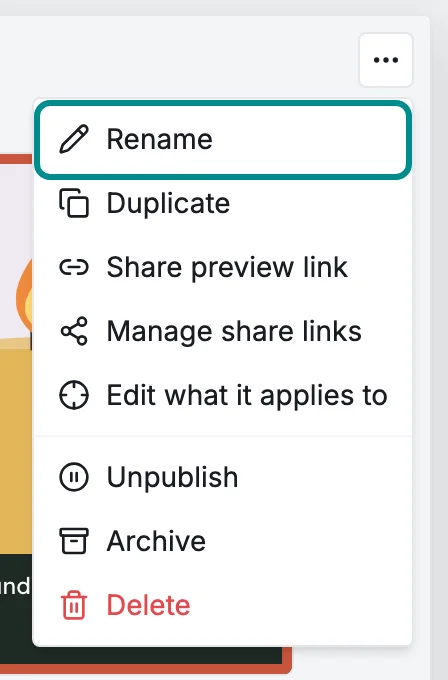
The menu holds every action for that template.
Archive takes a template out of your feed and moves it to Archived, where Unarchive brings it back. Deleting opens a confirmation that says where the template's products go: to the next template that applies to them, otherwise to your pinned Default, or to their own images if the Default's Rules tab is set to Keep their own images.
A deleted template waits under Recently deleted on the Archived tab, where Restore brings it back. Edit what it applies to, in the same menu, opens the template's rules.
Which template actually serves a given product is decided by what each template applies to and by priority, not by the gallery. See the applies-to rules and priority guides.
The setup checklist
Set up Adorn sits above your templates until every step is done, except on the free plan. It lists five steps in order, and each one shows its state: Done, To do, Waiting, Needs attention, Not working or Not checked yet.

A step that cannot start until an earlier one is done reads Waiting, shows no buttons and names the step it waits for, such as Adorn checks this once step 3 is done. The number is the first step that is not done yet.
The step to take next stands out, because its button is the one filled button on the card. The line under the title, such as 2 of 5 steps done, counts the steps that are done, and the progress bar beside it shows the same count.
- Press How on a step to read how to do it in the Help panel.
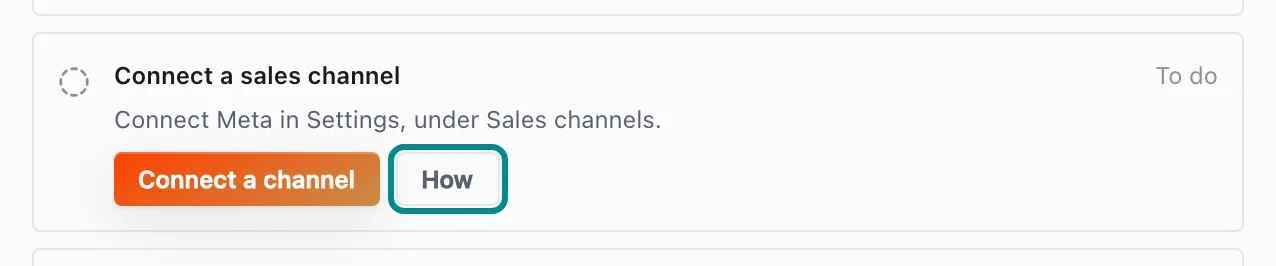
Each step that needs you has a How button beside its fix. - Press Hide checklist to put the card away. To bring it back, open Help on the Templates page and press Show the setup checklist.

Hiding the card changes nothing in your setup.