Getting started
Connect a source, choose your markets, make it on-brand, attach a template, preview on your real products, and publish your designed catalog feed in one session.
Read guide →Docs
Connect a source. Design a template. Set the rules. Publish the feed. Every step of the documentation, grouped below.
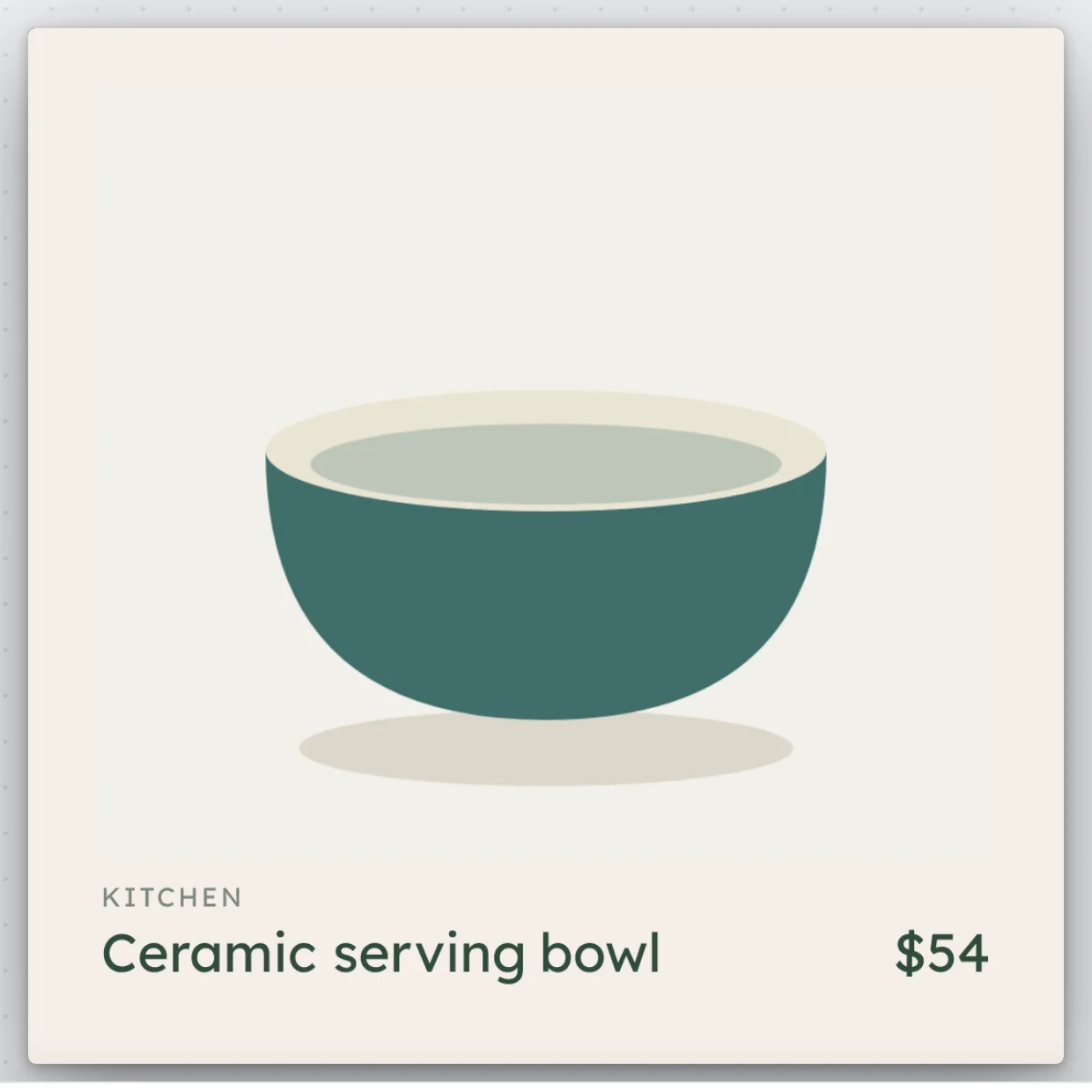
Everyday
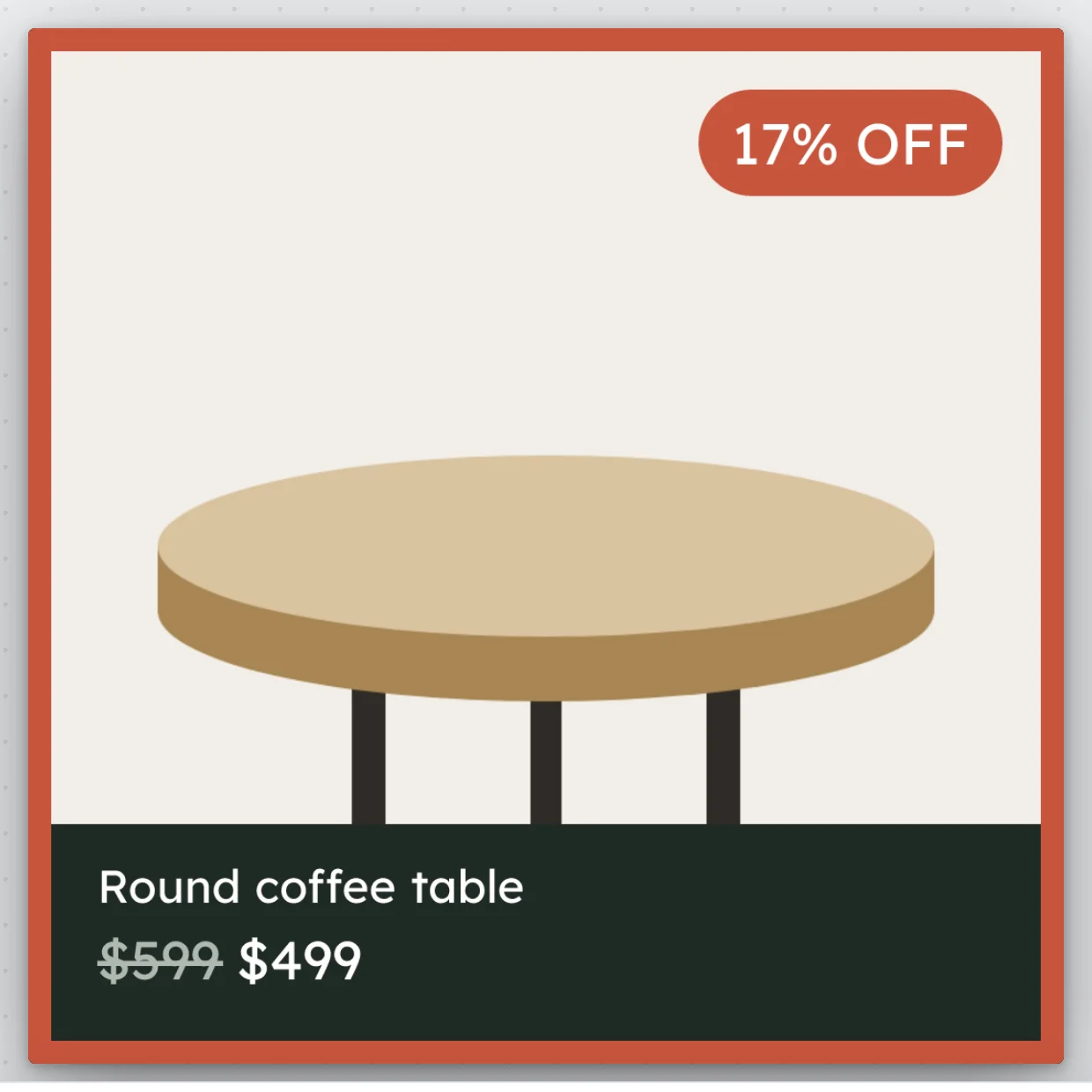
Price drop
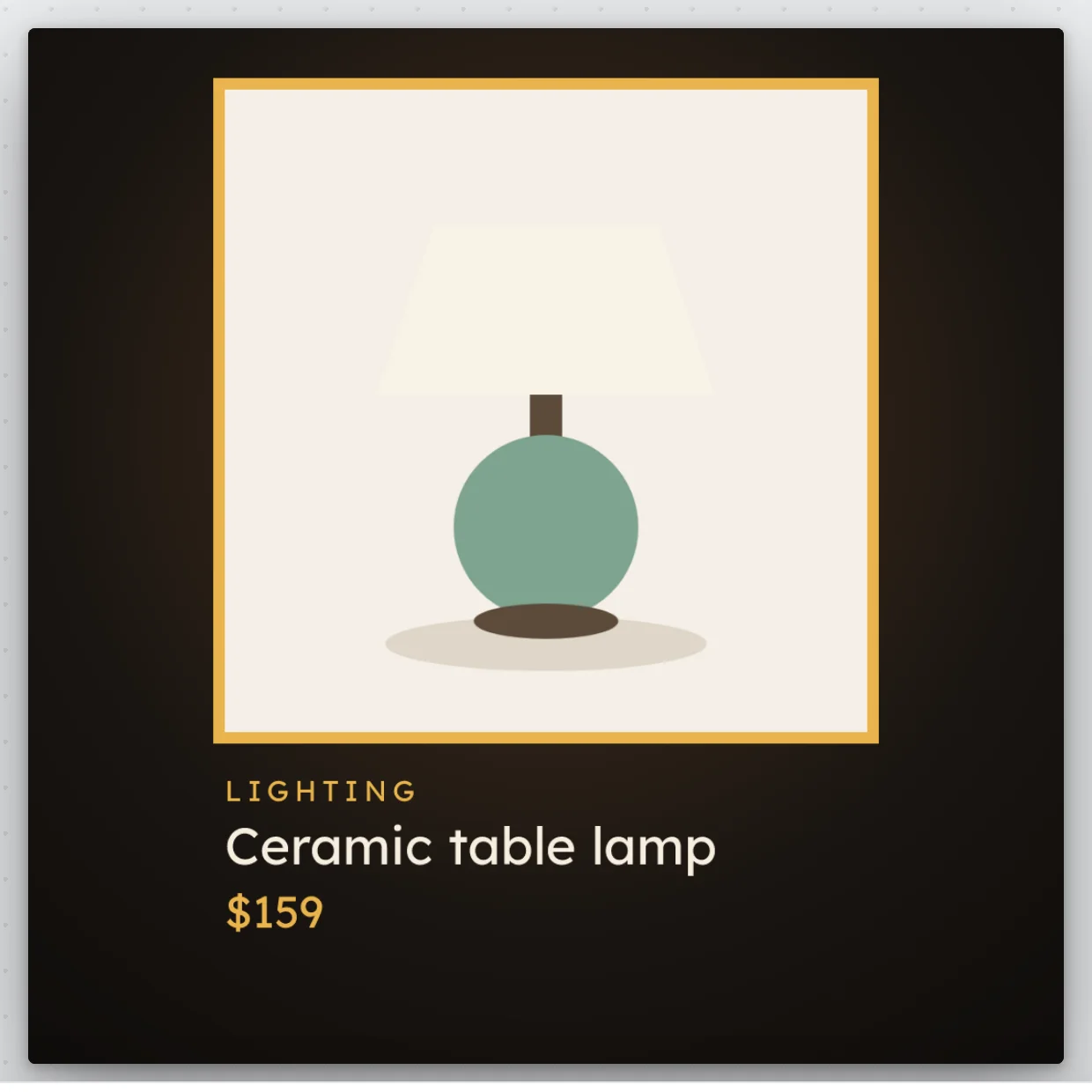
Lamp glow
Connect a source, choose your markets, make it on-brand, attach a template, preview on your real products, and publish your designed catalog feed in one session.
Read guide →How Adorn turns your products into designed catalog images: templates set the look, Adorn draws every product, and your feed carries the designs to your ads.
Read guide →Install Adorn from Shopify, create your Adorn account on the screen that opens, and see what to do if the store does not connect.
Read guide →Each screen of the setup wizard, from bringing in your products to publishing your first designs, and what each choice on it does.
Read guide →Search the docs, read the help for the screen you are on, check your store's health and write to support from the Help panel inside Adorn.
Read guide →Find, create and manage your templates, the designs Adorn builds around your product photos.
Read guide →Add a ready-made design to My templates from Community Templates, after you see it on one of your products.
Read guide →Bring a frame from a Figma file into a template as its starting layout, from the Templates panel in the editor.
Read guide →Send a read-only preview of a template's design to someone without an Adorn account, choose how long the link works, and revoke it.
Read guide →Send your changes to your feed: the publish flow, the check before your first go-live, approval when it is on, and what you see once a change is published.
Read guide →Test another version of a template's design against the design itself: create a variant, then give it its own colors, badge rules or wording.
Read guide →See every product in its design before anything changes in your feed, find one product, and see why a tile keeps its own photo or shows no photo.
Read guide →Target products with the plain-language rule builder: Match ALL or ANY of attribute, operator, and value conditions, watch a live match count, and schedule when a rule is active.
Read guide →Order your templates so the first match wins, pause templates without deleting them, preview the impact of a change before saving, and see the winning design across your whole catalog.
Read guide →Run a template's rule only between two times, read those times in your own time zone, and keep products out of your feed on a schedule.
Read guide →Test a variant of a template's design against the design itself, start and stop the test, and see which one wins.
Read guide →Connect your products two ways - a Shopify store or a pasted product feed URL - watch the import, reconnect a source, and let your designs refresh as prices and sales change.
Read guide →Connect your Meta catalog, publish your designed ad images, and complete the one documented Commerce Manager step so your ads serve Adorn's designed images.
Read guide →Connect a Shopify store or add a product feed, check that your products came in, and choose how products with variants reach your feed.
Read guide →Set the markets your store serves and where each one's prices come from, keep your channels' markets in step, and give Adorn your product costs.
Read guide →See the four cards on the Sales channels page, what each card shows before and after its channel is connected, and where to find your feed addresses.
Read guide →What the TikTok card in Settings shows while TikTok is not switched on, and the feed address it lists for each of your markets.
Read guide →What the Pinterest card in Settings shows before and after a connection, and what its waiting and turned down messages mean.
Read guide →What the Snapchat card in Settings shows before and after a connection, and how Snapchat places a designed image inside its own ad template.
Read guide →Add your Google feed address in Google Merchant Center, and see what the feed carries on the free plan.
Read guide →Background removal is free on every plan, no vendor key needed. Set a spend cap if you want one, then preview before turning it on. Lifestyle scenes are included on every plan as well.
Read guide →Choose which products get AI images, AI ad copy, product videos and motion clips, how many each can make, and where the sound for videos is set.
Read guide →See which products were cut out or kept with their own photos, and decide what happens to the photos Adorn could not cut out with confidence.
Read guide →See how the designs in each of your tests compare on Meta, and what each figure on the Insights tabs counts.
Read guide →Find the products that spent money on Meta ads and sold nothing, and the design each one spent it on.
Read guide →See how many templates your store serves, how many times it has published and which of Shopify and Meta it uses.
Read guide →See where each of your tests stands after Adorn's daily check, and promote a variant that has won.
Read guide →See which option of each element in a multivariate test is leading, how confident the read is, and when a combination can be promoted.
Read guide →Test several elements of one template at once, see how many combinations and images that makes, and publish the test.
Read guide →Check each segment Adorn calculates for your store, its members and the figures that put them there.
Read guide →Count what reached each of your feeds at its last read, what was left out, and why.
Read guide →Give an AI agent access to your store over MCP: create a token, choose exactly what it may do, connect it, and revoke it the moment you want it gone.
Read guide →Set your brand palette, font and logo, then manage who can use your store: its members and their roles, sending invites, and accepting one.
Read guide →Understand the plans and their catalog limits, start your 14-day free trial, and manage your plan in Shopify if it is billed through Shopify, or through secure checkout and the billing portal if you pay by card.
Read guide →Manage your own name, photo, sign-in email addresses, password and devices, choose how Adorn looks, switch between your stores, and reach support if you can't sign in.
Read guide →Invite people to your store, give each one a role, and choose whether a publish needs approval first.
Read guide →Choose who Adorn emails when your store needs attention, and see what each alert email is about.
Read guide →Read your plan and its limits on the Billing page, start or manage a plan by card or through Shopify, keep track of the stores your plan pays for, and fix a failed payment.
Read guide →What the free plan includes, how many products its Google feed carries, and what needs a paid plan.
Read guide →Cancel a paid plan by card or through Shopify, see what removing Adorn from your Shopify store does, and ask for your data to be deleted.
Read guide →Work in the canvas editor: the tool rail panels, the canvas and its artboard ratios, the Inspector, undo/redo, and the full keyboard-shortcut set.
Read guide →What each panel on the editor's tool rail holds: Add element, Layers, Brand, Creative & AI, Assets and Templates.
Read guide →What the Inspector's sections for an element's content and layout do, from Asset and Text to Position & size and Data binding.
Read guide →What the Inspector's sections for an element's look, motion and AI do: Background, Write copy with AI, Appearance, Animate and Effects.
Read guide →The sizes a design comes in, how to switch the size you are editing, and the safe zones that show what stays clear in an ad.
Read guide →Animate the elements of a design, play the motion on the canvas, and see the still image or the video your feed gets.
Read guide →Reword the product title a template shows, such as taking out a brand name or sizes, without changing the title in your store or feeds.
Read guide →Answers to the questions Adorn users ask most - feeds, templates, connections, and plans - and how to reach us for anything else.
Read guide →What each Adorn problem code means, what it affects, and how to fix it.
Read guide →What the Store health page checks, what each row's state means, and where a problem code leads.
Read guide →What to check first when your designs do not show in your Meta ads, and the problem codes that cause it.
Read guide →What to check first when price and stock changes do not reach your feed, and the problem codes that cause it.
Read guide →What to check first when a product is left out of your feed, and the problem codes that cause it.
Read guide →What to check first when a product does not get a template's design, and the problem codes that cause it.
Read guide →What to check first when an ad shows a product's own photo instead of your design, and the problem codes that cause it.
Read guide →What to check first when Adorn cannot import your product feed, and the problem codes that cause it.
Read guide →What to check first when Adorn can no longer read your Shopify store, and the problem codes that cause it.
Read guide →What to check first when products stop getting AI images, and the problem codes that cause it.
Read guide →What to check first when a payment for your plan fails, and the problem codes that cause it.
Read guide →What to check first when alert emails do not reach you, and the problem codes that cause it.
Read guide →What to check first when the install from Shopify does not connect your store, and the problem codes that cause it.
Read guide →Plain definitions of the words these guides use for Adorn's parts, from templates and rules to feeds, sales channels and markets.
Read guide →Every Adorn plan with its price and how many products it covers, the free plan, Enterprise, stores billed through Shopify, and the free trial.
Read guide →The fields Adorn reads from each product in a Google Shopping feed, and the ones a feed must have before Adorn can connect it.
Read guide →Every notice the bell shows and every alert email Adorn sends, with the code each one carries.
Read guide →Changes to Adorn that are already released, newest first.
Read guide →