Editor
The canvas editor
Checked against the app on October 17, 2026
Work in the canvas editor: the tool rail panels, the canvas and its artboard ratios, the Inspector, undo/redo, and the full keyboard-shortcut set.
Editor layout
The editor has three regions: the icon tool rail on the left, the canvas in the center, and the Inspector on the right. A rail panel slides over the canvas when you open a tool, and the Layers panel is open by default.

The tool rail
The rail's tools, from top to bottom, with Documentation at the foot:
- Add element: insert an element onto the canvas
- Layers: reorder, show or hide, and lock the elements in your design
- Brand: the design levers for your palette, fonts, and canvas background
- Creative & AI: the copy, video, motion and AI-image settings for this template
- Assets: the images you have uploaded
- Templates: import a design with Import from Figma
- Documentation: open the Help panel beside your design
Working on the canvas
Select an element to move, resize or rotate it. Your design adapts to each Meta size: 1:1, 4:5 and 9:16. Once Pinterest is connected, a fourth artboard appears alongside them: 2:3, Pinterest's own 1000x1500 Pin size.

- Turn on Safe zones to see where content stays clear of the frame.
- Double-click an image to crop it in place.
- Turn on Rendered to see the exact image your feed will use. Only AI-written copy can differ.
- Select an element, and the toolbar above it can bring it forward, send it backward, duplicate it, lock it or delete it. More actions holds the same and more, such as Bring to front and Send to back.
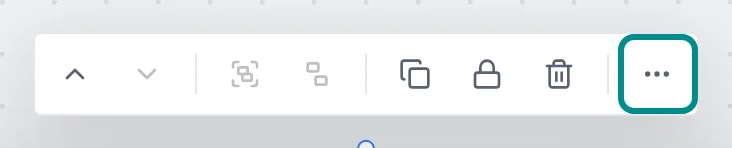
More actions holds the rest of the commands for the selection.
The Inspector
The Inspector on the right shows the selected element's numeric position and size plus its color, opacity, and corner radius, and the canvas background controls. During a drag it tracks the live position, so the readout stays in step with the canvas.
Undo, redo, and history
Every canvas change is one undoable step. Undo and redo work from the keyboard on the canvas and from the top-bar buttons, and both drive the same history stack.
Keyboard shortcuts
The editor shares these shortcuts, grouped by what you reach for.
Selection & clipboard
History
Move & arrange
Canvas
Multi-select
Rotate
Autosave, drafts and clashes
The editor saves your changes as a draft as you work, and your feed stays as it is until you publish. The status in the top bar reads Auto-saved once your draft is saved, and Published once nothing is waiting to go live.

Your draft is there when you open the template again. Discard, in the top bar, throws the draft away and goes back to what is published, once you confirm with Discard. Keep editing leaves the draft as it is.
If someone else publishes a change to the same template while you have a draft, the parts they changed take their version when you next open the editor, and a message says which parts. If they publish after you opened it, your publish stops, and Reload editor brings in their version so you can make your change again.