Account & billing
Connect an AI agent
Checked against the app on October 17, 2026
Give an AI agent access to your store over MCP: create a token, choose exactly what it may do, connect it, and revoke it the moment you want it gone.
What this does
Adorn speaks MCP, the protocol AI assistants use to work with outside tools. Connect one and it can look at your templates, check your feed, prepare drafts, and, if you allow it, publish. Everything it does is scoped to your store and written to an activity log you can read.
Agent access, in Settings, is where an owner creates tokens, sees what each one has done and revokes them.
A token works for one store only. It carries your store inside it, so an agent holding it cannot see or touch any other store, and there is no setting that would let it.
Create a token
- Open Settings, then Agent access. Only an owner of the store can create a token.
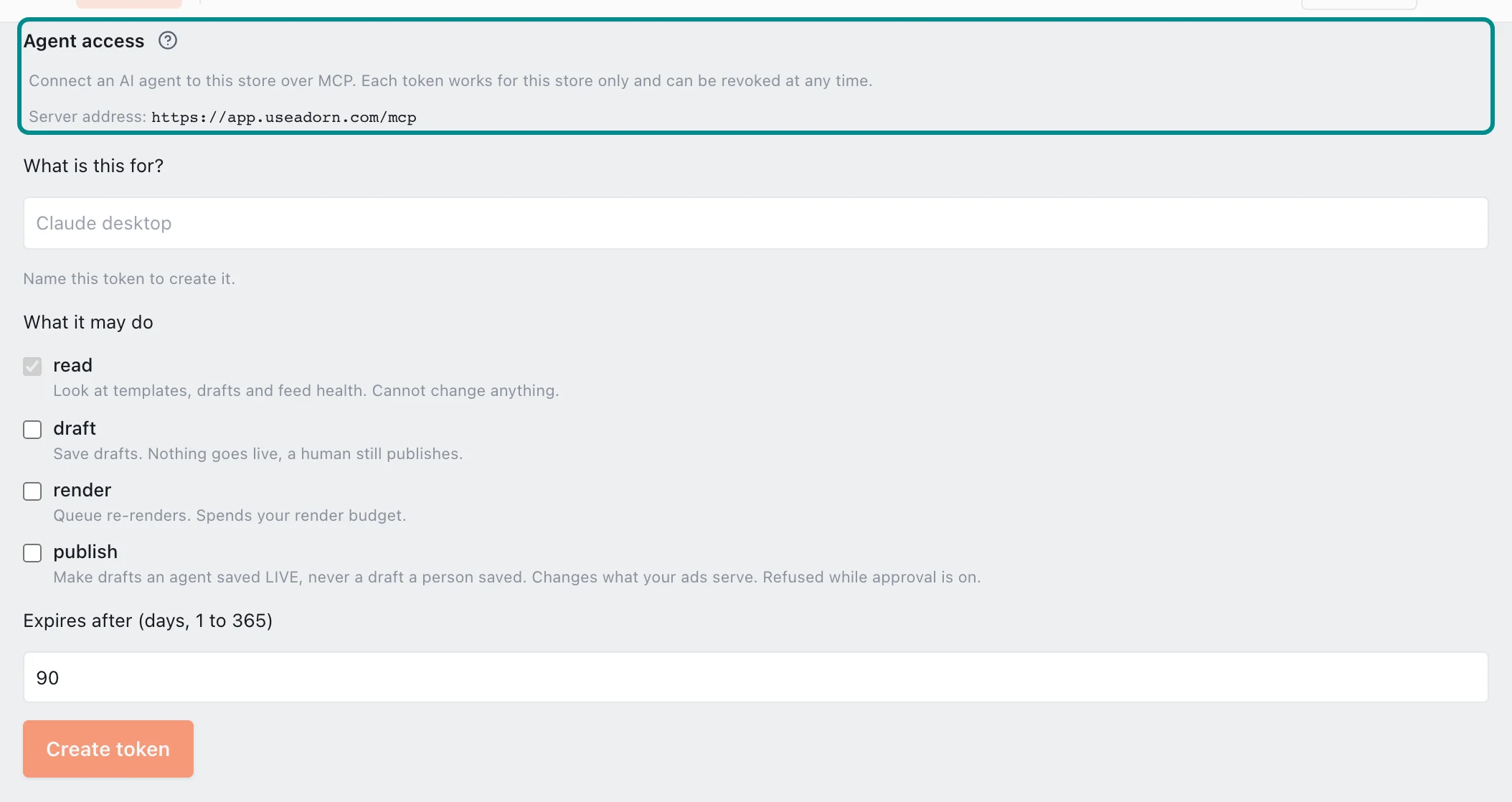
The question mark beside the page title opens this guide in the app. - Give the token a name you will recognize later, such as the assistant you are connecting it to.
- Choose what it may do. Read is always on. Add draft, render or publish only if you want them.
- Set an expiry from 1 to 365 days.
- Select Create token, then copy the value straight away.
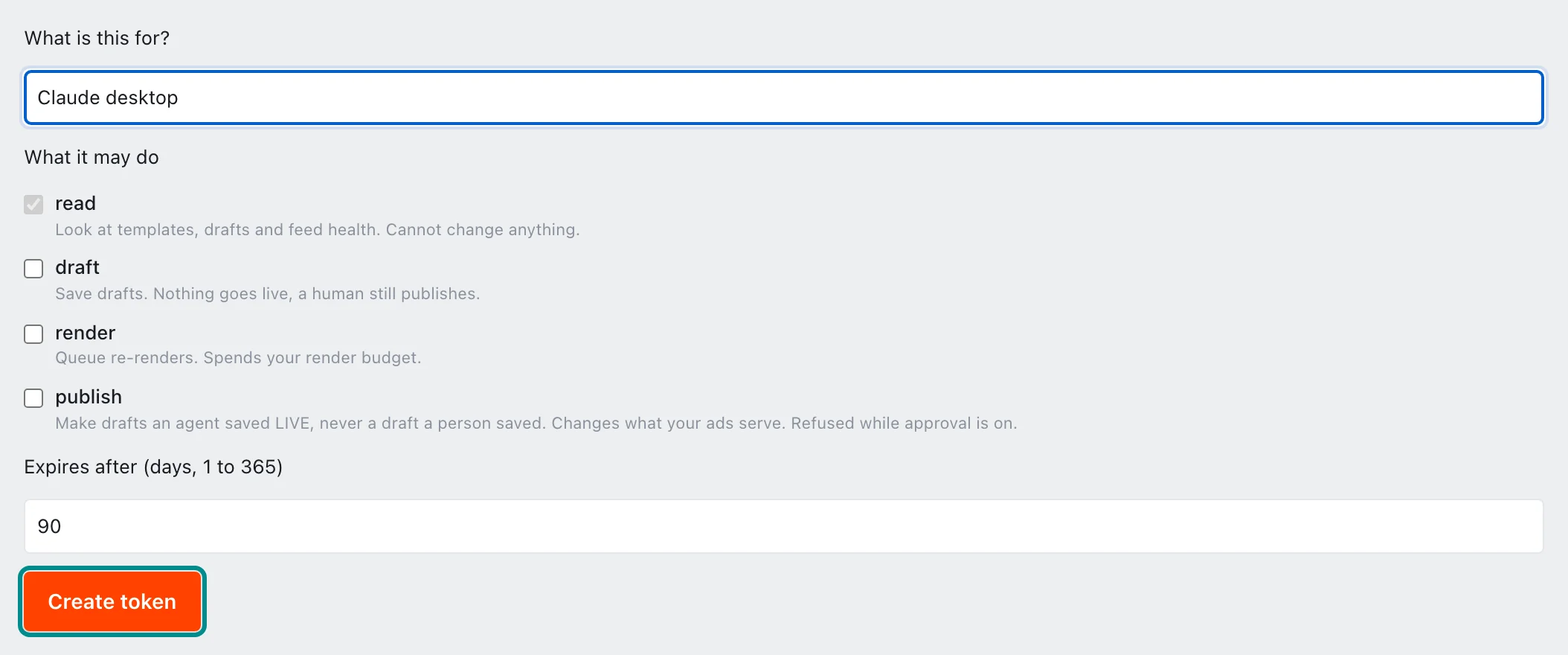
Create token works once the token has a name.
The token is shown once and never again. We store only a hash of it, so it cannot be looked up later, not even by us. If you lose it, revoke that token and create another.
Connect it
Adorn's MCP server lives at one address, which Agent access shows as Server address. Point your assistant at it and send the token as a bearer credential. Most assistants take a small JSON config like this one.
{
  "mcpServers": {
    "adorn": {
      "url": "https://app.useadorn.com/mcp",
      "headers": {
        "Authorization": "Bearer YOUR_TOKEN_HERE"
      }
    }
  }
}
There is no store name to enter anywhere. The token already carries it, which is why the same config works for any Adorn store and why one store's token can never reach another.
What each permission allows
- Read: look at templates, drafts and feed health. Changes nothing.
- Draft: save drafts. Nothing goes live, and you still publish yourself.
- Render: queue re-renders. This spends your render budget.
- Publish: make drafts an agent saved live, never a draft a person saved. This changes what your ads serve.
Publish is the one to think hardest about. While approval is off, an agent holding a publish token can change your live ads without anyone approving it first. While approval is on, Adorn refuses its publishes. If you want an agent to prepare work and a person to approve it, give it draft and not publish.
Permissions do not stack. Granting publish does not grant render, so an agent allowed to publish cannot also spend your render budget unless you tick that box too.
See what it has been doing
Agent access lists recent activity, including anything an agent tried and was refused. A refusal is worth as much as a success here: it tells you an agent reached for something you had not allowed.
Revoke access
Select Revoke beside any token. It stops working immediately and any assistant using it loses access at once. Revoking cannot be undone, so create a fresh token if you need access again.

Frequently asked questions
Can an agent see my other stores?
No. The token carries one store inside it and no request can name a different one, so there is nothing to misconfigure.
Can I get a token back if I lose it?
No. We store only a hash, so nobody can recover the original, including us. Revoke the lost token and create a new one.
Will an agent publish something by accident?
Only if you gave it publish and approval is off. Without that permission, or with approval on, it can prepare drafts and a person still has to publish them.
How do I stop an agent immediately?
Revoke its token. It stops working on the next request, with no delay and nothing to redeploy.