Sales channels
The Sales channels page
Checked against the app on October 17, 2026
See the four cards on the Sales channels page, what each card shows before and after its channel is connected, and where to find your feed addresses.
The Sales channels page
Sales channels, in Settings, is where your designed feed ships. It holds one card for each sales channel: Meta, TikTok, Pinterest and Snapchat.

Only an owner of your store can connect, set up or disconnect a channel.
The four cards
Before Meta is connected, the Meta card is titled Connect your Meta catalog and has a Connect Meta button. Once Meta is connected, the card is titled Meta connection status and shows how setting up your catalog is going.
The Pinterest card has a Connect Pinterest button, and the Snapchat card has a Connect Snapchat button. While TikTok is not switched on, the TikTok card has no Connect button and lists a feed address for each of your markets instead.
What a card's state means
Each card shows its channel in one state at a time:
- Before a channel is connected, its card has a Connect button and says what connecting does.
- Once a channel is connected, its card shows the connection's status, and an owner can press Disconnect.
- If a connection stops working, the card says what went wrong, and an owner can press Reconnect.
- If Adorn's own app for a channel is not set up, the card has no Connect button.
- If Adorn can't read a channel's state, the card says so, and Retry reads it again.
If you add a market after a channel is connected, an owner uses Sync markets to channels on that channel's card, or for Meta adds each market's feed from the Meta card.
Your feed addresses
A channel collects your designed feed from an address. Adorn shows your feed addresses in three places:
- After a publish from the editor, the Published window shows your Meta catalog feed URL, or Per-market feed URLs when your store has more than one market, each with a Copy button.
- In Settings, Sources & markets, Per-market feed URLs lists each market's feed address for each channel once you serve more than one market.
- While TikTok is not switched on, the TikTok card on the Sales channels page lists each market's TikTok feed address with a Copy button.
- While TikTok is not switched on, press Copy beside a market's address on the TikTok card, then paste the address where your channel asks for a feed address.
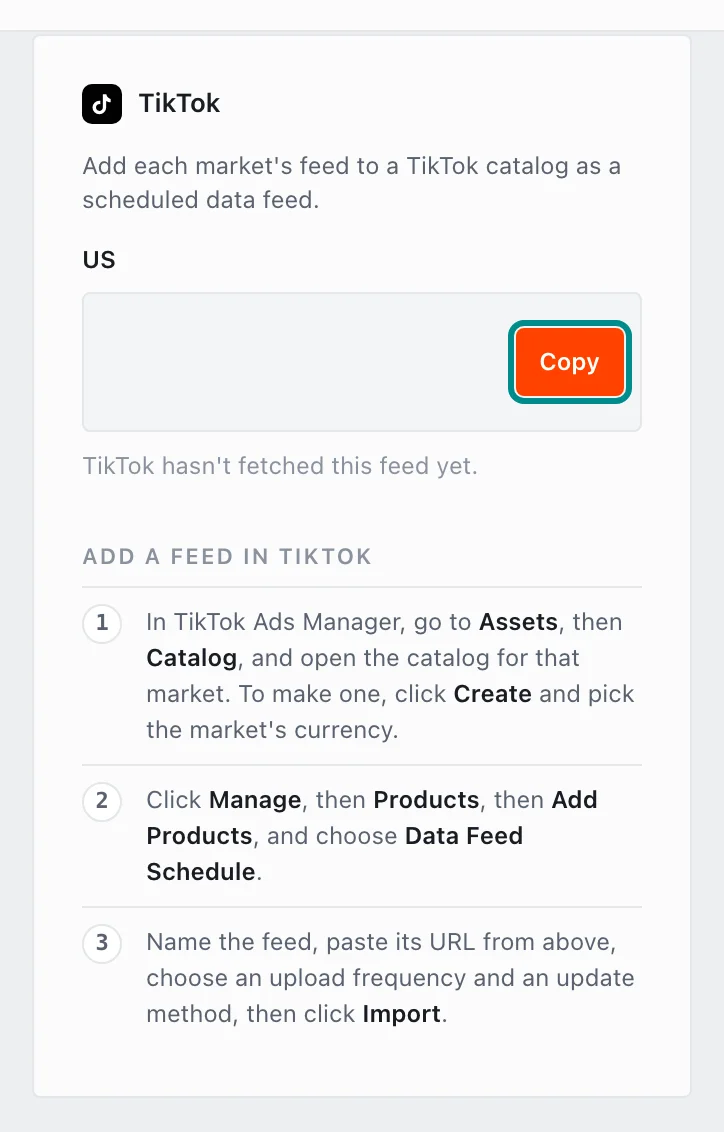
Copy puts the whole address on your clipboard.
The setup checklist's Get your feed collected step is done once a channel collects your feed. If you use DataFeedWatch, add your Adorn feed address there.