Sources & Meta
The Data sources page
Checked against the app on October 17, 2026
Connect a Shopify store or add a product feed, check that your products came in, and choose how products with variants reach your feed.
The Data sources page
Data sources, in Settings, is where your products come from: a Shopify store, a product feed URL in XML or CSV, or both. Each card on the page handles one part of that.

Connect your Shopify store
Who can do this: Owners only.
Connect your Shopify store asks for your store's domain, the address that ends in .myshopify.com. Press Connect store, approve Adorn in the Shopify tab that opens, then come back to Adorn.
The card goes away once the store is connected. If the store needs connecting again later, Connection status offers Reconnect, which brings the card back. For a store installed from Shopify, the card then names your store, and Reconnect in Shopify takes you to Shopify to approve Adorn again, with nothing to type.
Connection status
Connection status shows how your Shopify import is going. It reads Importing your catalog… while products come in, then Your catalog is ready. with the number of products connected.

It also counts the products Adorn leaves out: a product with no photo in Shopify, and a product that is a draft or archived. Add a photo, or set the product to active in Shopify, and it comes in by the next sync, which runs every hour on a paid plan and once a day, at 06:30 UTC, on the free plan.
If the connection stops working, the card says so, and an owner can press Reconnect.
Product variants
Who can do this: Owners only.
For a Shopify store, Product variants chooses how a product with several variants reaches your feed. Group variants lists each variant under its product, and One per product sends only the product's first variant in stock.

Press Save, and Adorn applies the choice at the next import, which runs every hour on a paid plan and once a day, at 06:30 UTC, on the free plan. Variants that leave your feed drop out after about two days.
Add a product feed
Who can do this: Owners only.
- Under Add a product feed, paste your feed's address into Product feed URL, then press Connect feed.
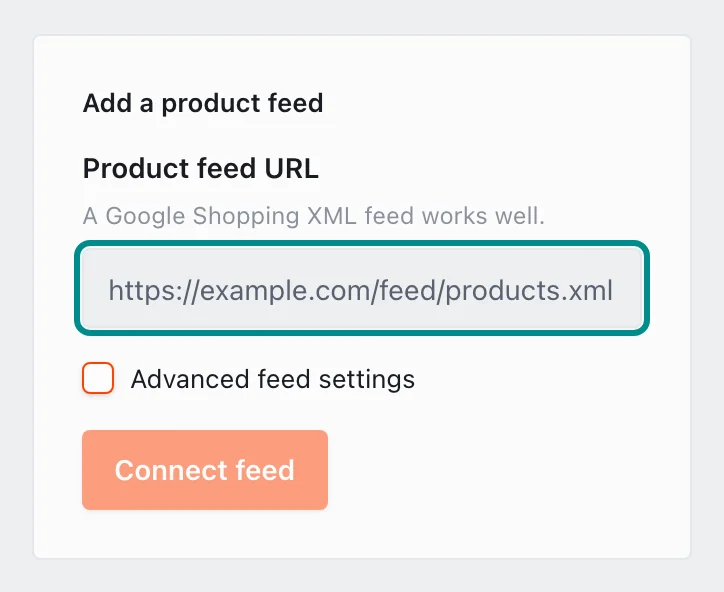
Paste the full address, starting with https.
A Google Shopping XML feed works well. Advanced feed settings is for a feed whose fields have other names: it maps your collection, tags and review fields, and a CSV's own column names, to the fields Adorn reads. Leave a field blank to use the default.
If the feed can't be read, the card says why, such as an address that can't be reached or a feed missing product fields, and nothing is saved.
Your sources
Your sources lists each source Adorn imports from, with how its last import went, and the number of products connected. A source that is importing says so, and one that has finished reads Ready.

If an import fails, the row says why, and Retry tries the same source again without adding a second copy of it. Add another source takes an owner to Product feed URL.
If some products have sale dates Adorn can't read, the card counts them. They show their regular price with no sale badge until the sale dates in your feed are fixed.