Getting started
Install from Shopify
Checked against the app on October 17, 2026
Install Adorn from Shopify, create your Adorn account on the screen that opens, and see what to do if the store does not connect.
Install Adorn in Shopify
Adorn installs from Shopify like any other Shopify app. Shopify asks you to approve the app for your store, then opens Adorn in your browser.
Adorn starts importing your products as soon as the install finishes, so they are on their way while you set up your account.
Create your Adorn account
The screen Adorn opens names your store and asks you to create an Adorn account for it, or to sign in if you already have one. Finish in the same browser you installed from.
- Create your account, or sign in.
- Wait a moment while Adorn connects the store to your account.
- Press Continue setup to open the setup wizard.

The store is connected and its products are importing.
If your store pays for Adorn through Shopify and has no plan yet, that button reads Choose a plan in Shopify, and it opens Shopify so you can pick your plan there.
If the store does not connect
When Adorn cannot connect the store, the screen says why. Each case has a problem code, and its Contact support button opens the support form with that code attached.
- This store could not be connected: the account you signed in with holds more than one store and no paid plan. Press Contact support, and we connect the store to the right account with you.
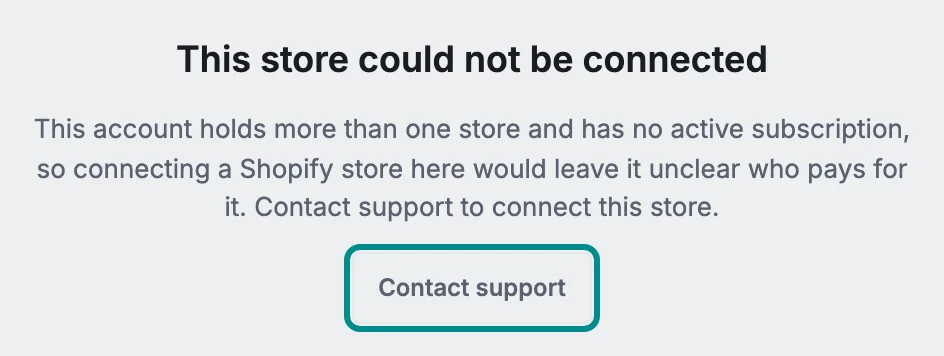
Support connects the store to the right account with you. - This store is already connected: the store belongs to a different Adorn account. Sign in with that account, or press Contact support to move the store.
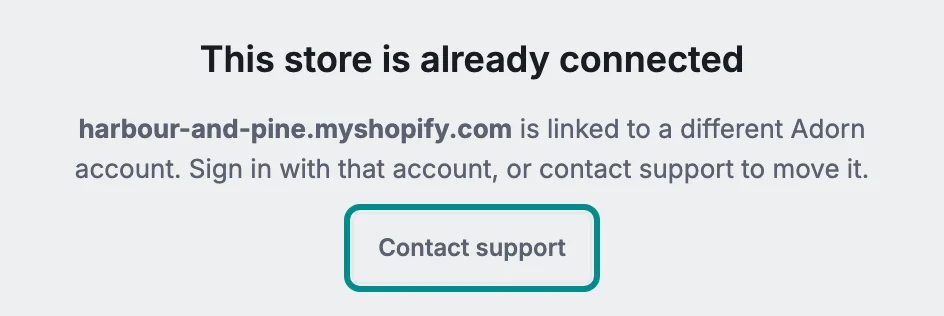
Sign in with the account that owns the store, or ask support to move it. - This install link has expired: install links expire quickly to keep your store safe. Install Adorn again from your Shopify admin, or press Contact support.
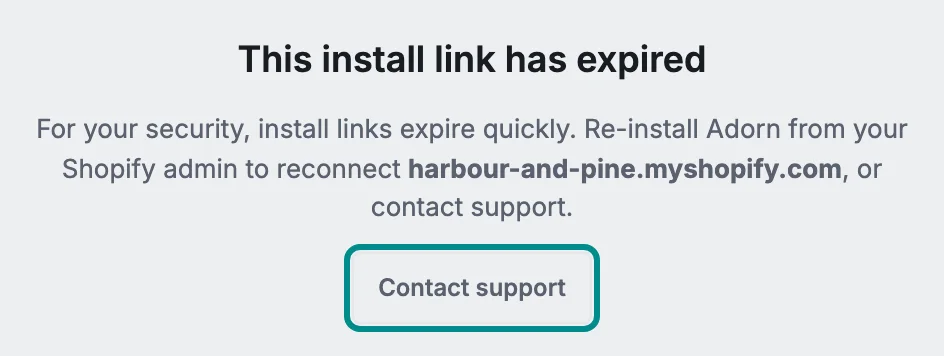
Install Adorn again from your Shopify admin to get a new link.
Your free trial
Every paid plan starts with a 14-day free trial, and designed images need a paid plan. A store that pays through Shopify chooses its plan in Shopify, and until it does, the store stays on the free plan.