Getting started
The setup wizard
Checked against the app on October 17, 2026
Each screen of the setup wizard, from bringing in your products to publishing your first designs, and what each choice on it does.
Welcome
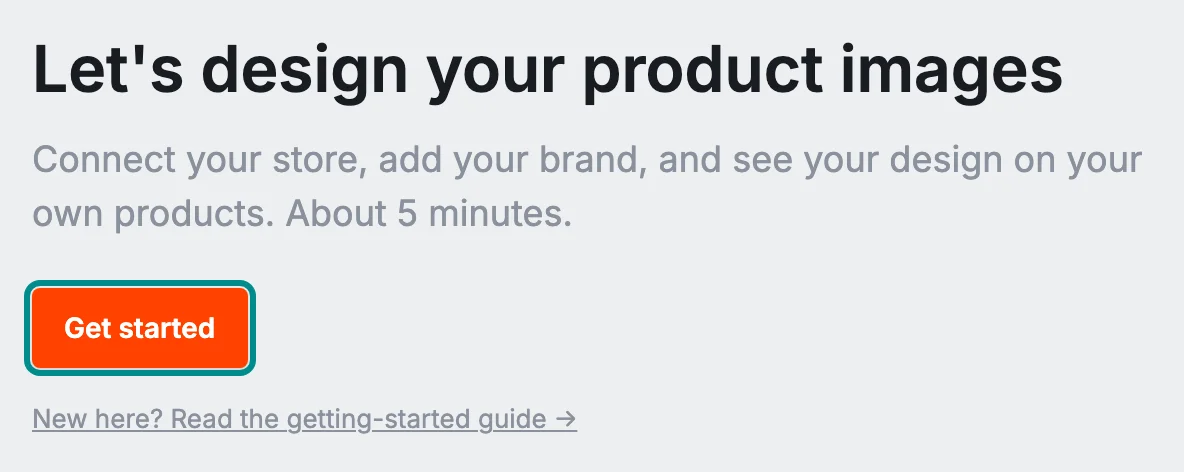
The setup wizard opens when you sign in with no store yet, and again for a store that has not published, at the first step it still needs. Its first screen, Let's design your product images, has one button: Get started.
Each later screen shows the step you are on across the top, and Back returns you to the one before, so you can change an earlier choice before you publish.
Connect
Connect your store offers two ways to bring in your products. For a Shopify store, type its address in Store domain, press Connect Shopify, and approve Adorn's app in the tab that opens. For any other store, choose Paste a product feed URL and connect a public product feed.
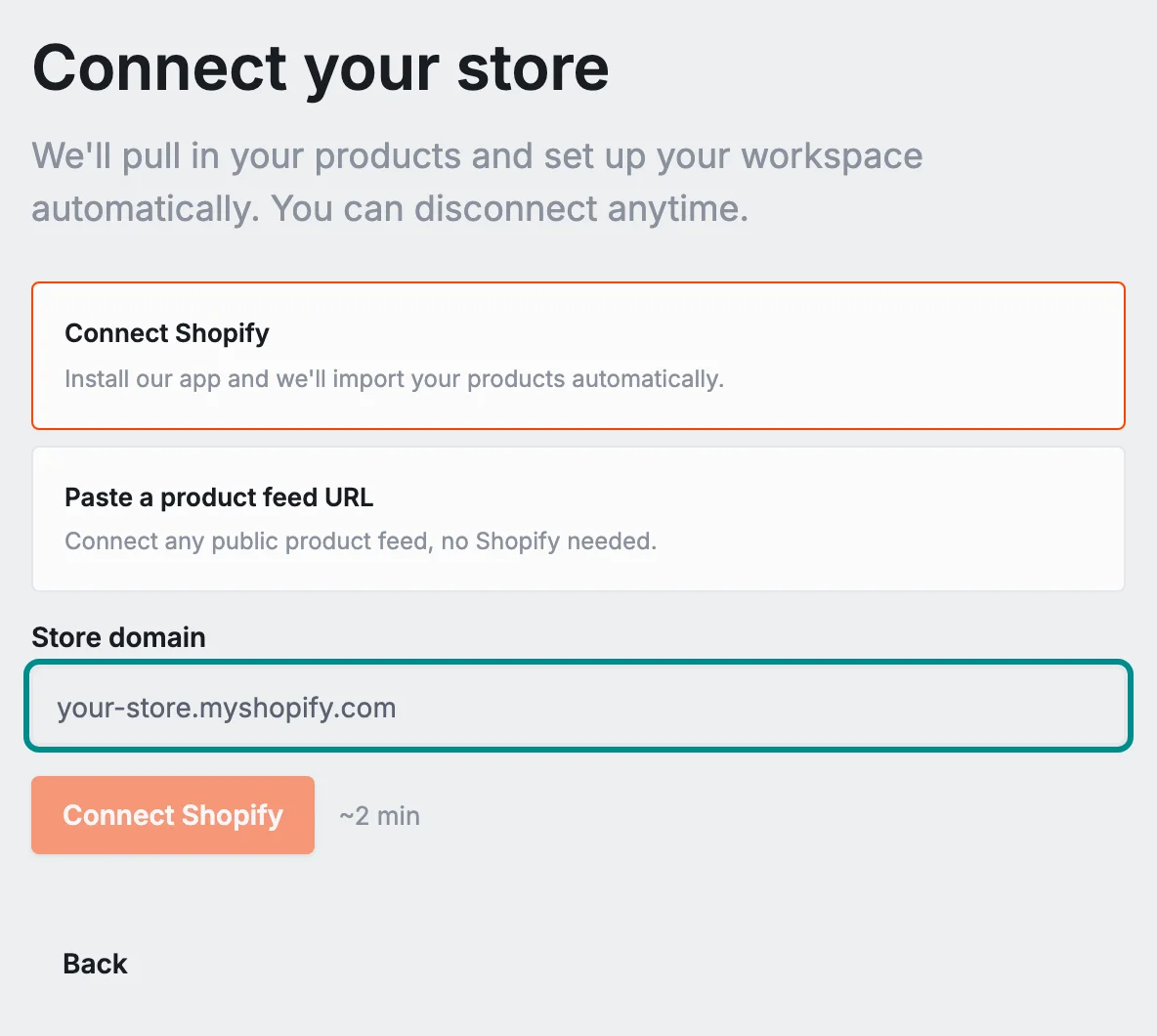
Adorn imports your products while you wait. When they are in, a few of their photos appear on the step and Continue turns on.
Markets
Which markets do you serve? lists the country your products sell in, with its Code, Currency and Locale. If you sell in one country, check its code and press Continue.
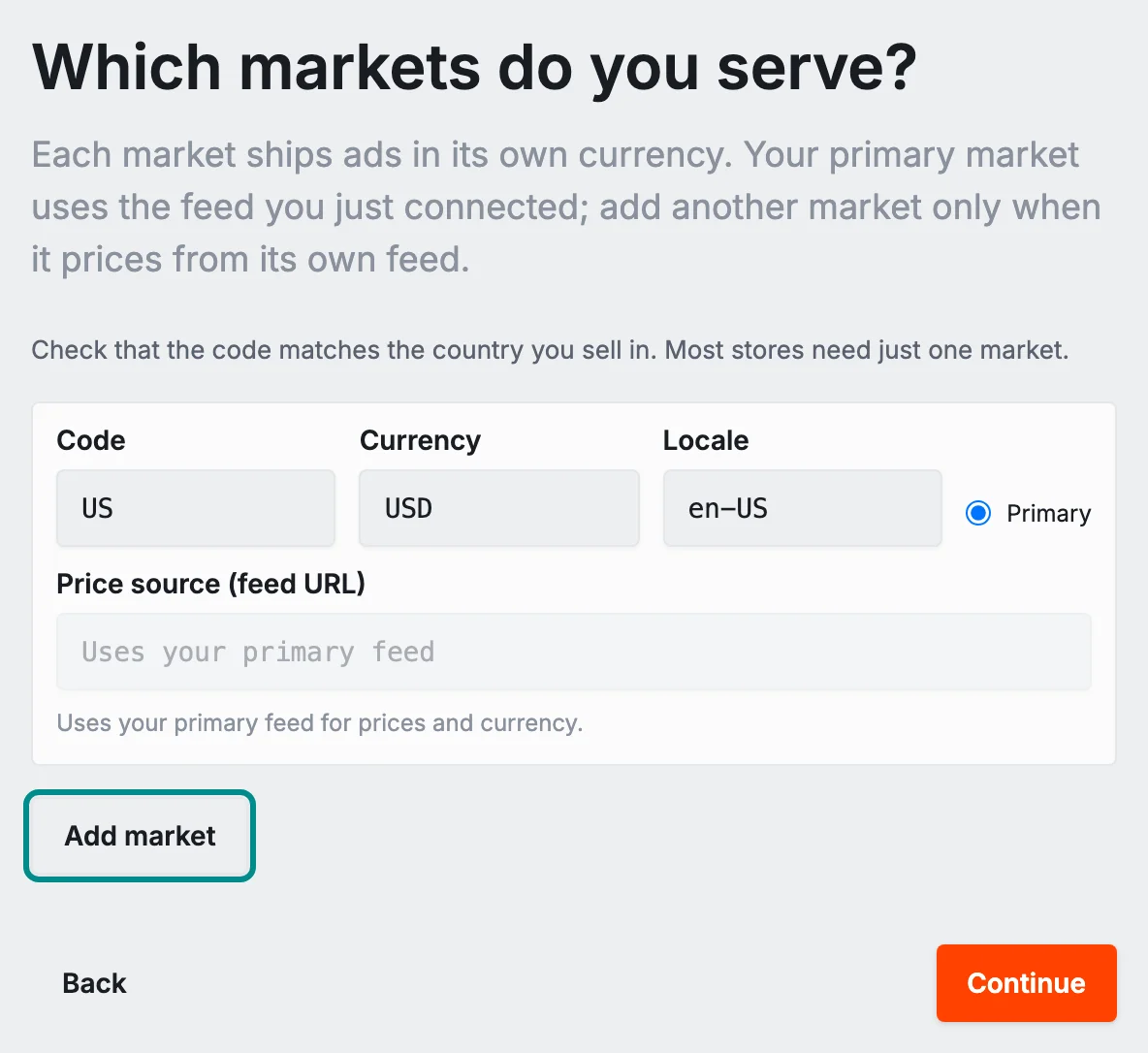
To run ads in another country with its own prices, press Add market and give it a code and a currency. An added market needs a source for its own prices, and the step will not move on until each one has one.
Brand
Make it yours sets the colors, font and logo your templates use. Put your website's address in Store URL and press Import my brand to fill them in from your site, or choose a Palette and a Font yourself and upload your logo.
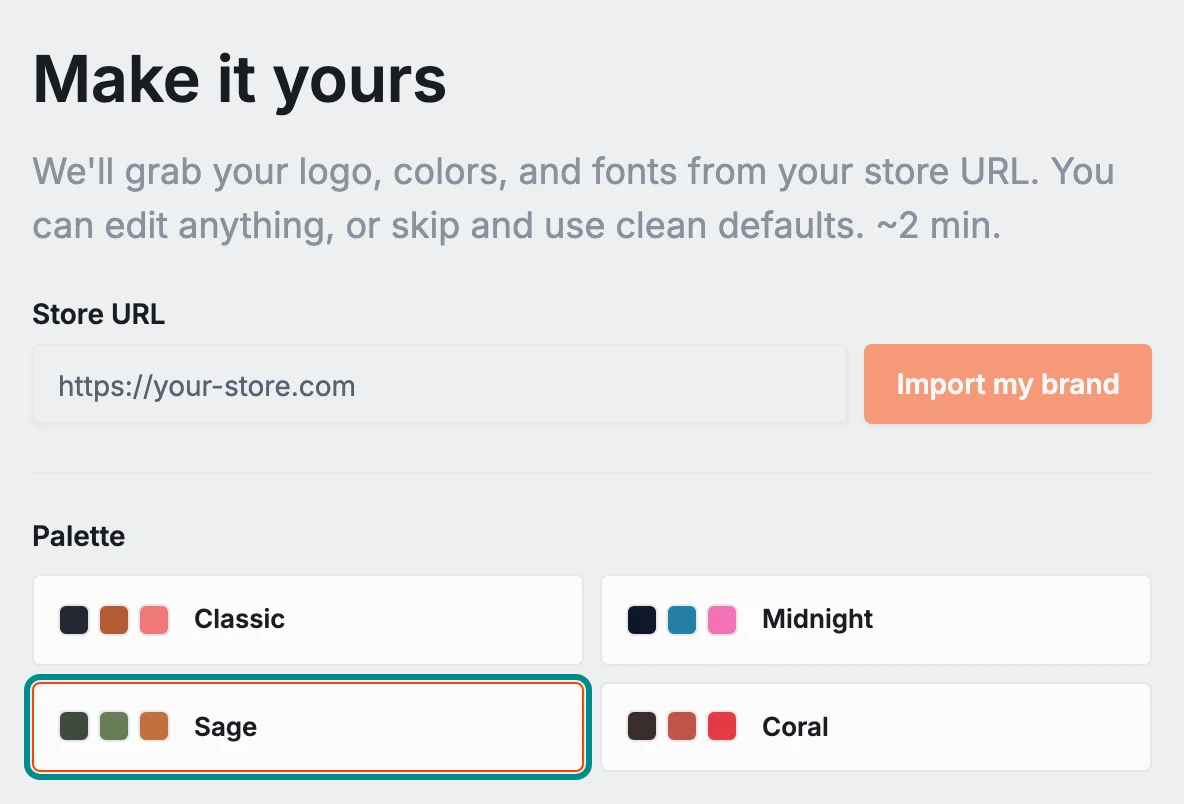
Skip for now moves on with clean defaults, and you can change your brand later in the editor.
Template
Pick a starting template lists Adorn's starter templates. Standard is linked to your product details, so your design shows your own photo, title and price straight away.
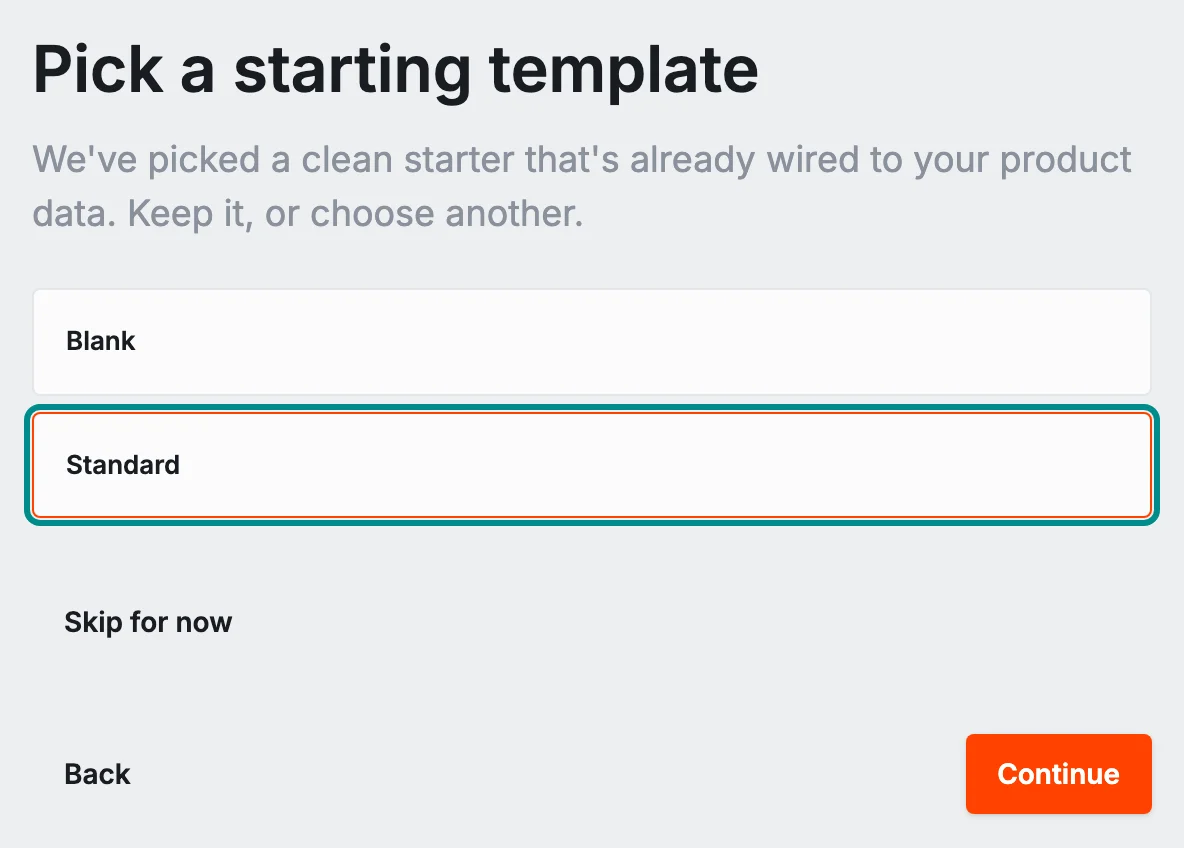
Choose one and press Continue, or press Skip for now to go straight to the preview.
Preview
Here's your creative on your real products opens a preview of your design on your own products once they have imported. Each tile names the template that product gets, and a tick on Exact means the tile shows the finished image Adorn makes for it.

Close the preview to come back to the step, and press Preview across products to open it again. When you are happy, press Publish my feed. On a paid plan with a sales channel connected, Adorn first asks Publish to live ads? because publishing changes the images in your ads.
Publish
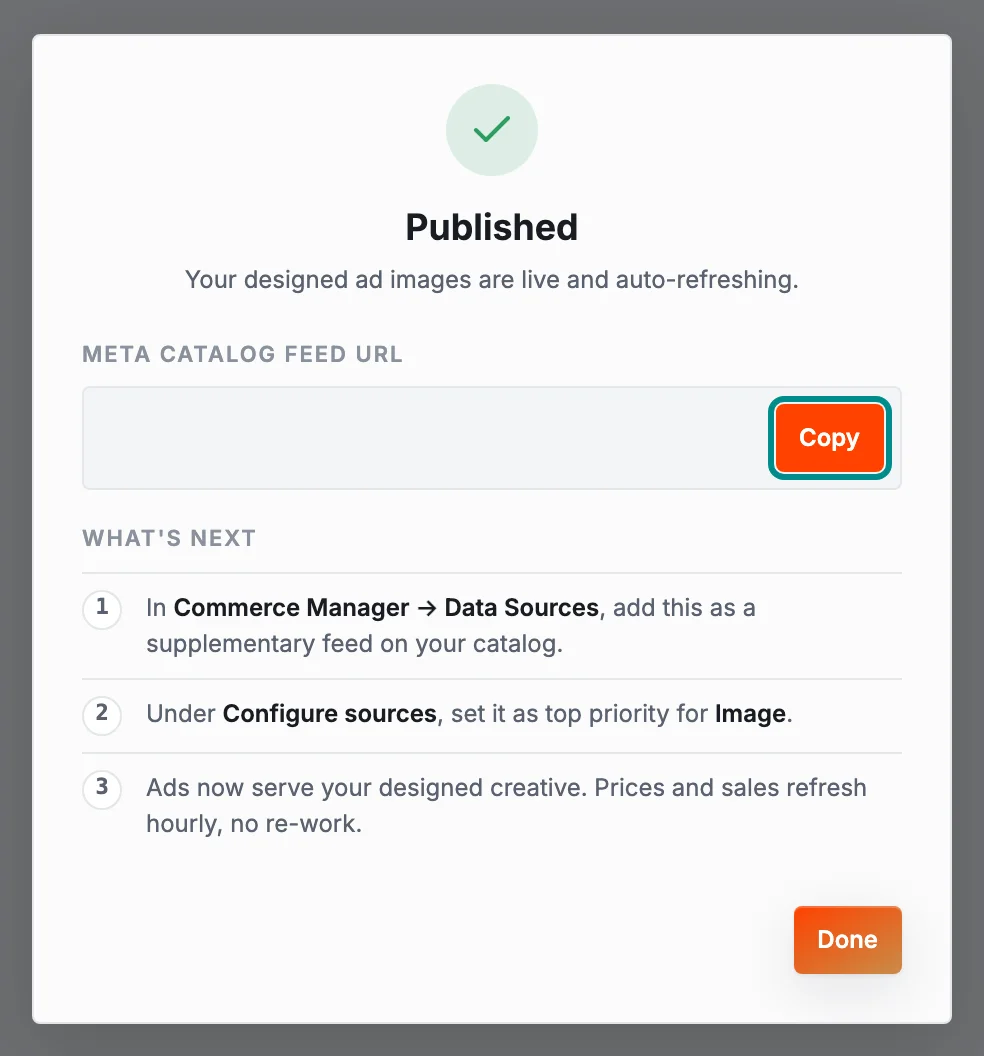
What comes after publishing depends on your plan. With a paid plan or a free trial, the wizard shows Published. It holds your Meta catalog feed URL and the steps to take in Meta Commerce Manager. The next screen is Connect Meta to serve your feed in ads, with I'll do this later beneath it.
On the free plan, Your design is saved shows the plans you can choose from and your Google feed address to add in Google Merchant Center. Choose a plan to start your free trial, or press Continue on the free plan.