Applies to & priority
Schedules and time zones
Checked against the app on October 17, 2026
Run a template's rule only between two times, read those times in your own time zone, and keep products out of your feed on a schedule.
Schedule a rule
A template's rule can have a schedule, so a sale design shows only while the sale is on. The schedule sits under the rule on the template's Rules tab, and a rule with no schedule reads Always active.
- Turn on the Schedule switch under the rule, then set Active after to the time the rule starts and Active before to the time it stops.
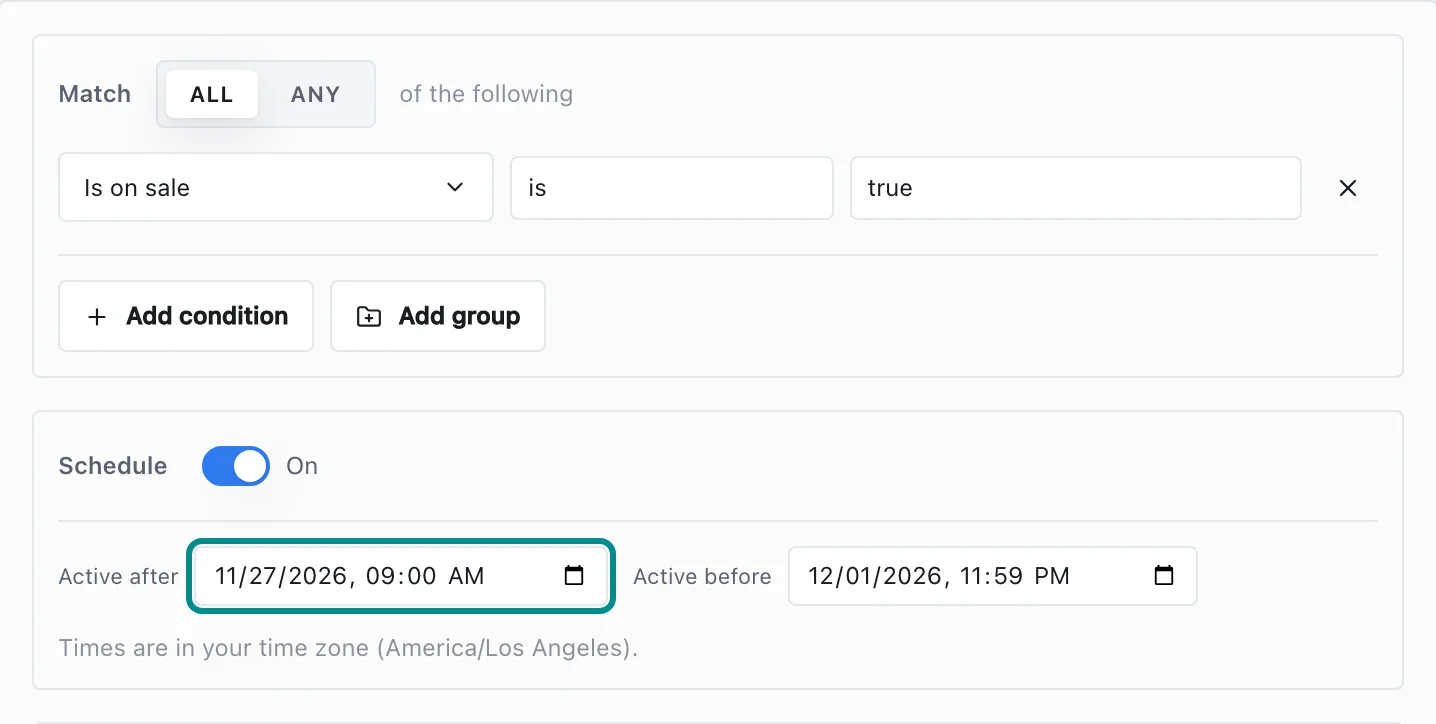
The line under the two times names your time zone.
Fill in only Active after to start the rule at a time and leave it on, or only Active before to stop it at a time. Outside its window the rule is off, its products go to the next template that applies, and the count under the rule reads Outside its schedule right now.
A schedule takes effect once you publish the template.
Time zones
You type the times in Active after and Active before in the time zone of the computer you are using, and the line under the two fields names that time zone.
Adorn saves each time as an exact moment, so a start time means the same moment for everyone on your team, and someone in another time zone sees it in their own time.
If Adorn can't read a saved date, the count under the rule says so, and the rule stays off until you set the date again.
Keep products out of your feed on a schedule
In Settings, Sources & markets, the Feed rules card keeps products out of your feed. Force-exclude product IDs takes the IDs of single products, and Exclude products where takes a rule built the same way as a template's rule.
- Under Exclude products where, build the rule, then turn on its Schedule switch and set Active after and Active before.
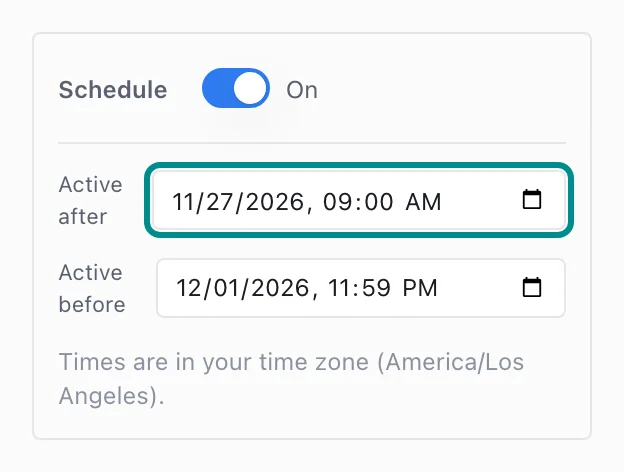
The rule keeps matching products out of your feed only between these two times.
The rule then keeps matching products out of your feed only between those two times. The count under it says how many products it matches, and a rule with no conditions keeps nothing out. Press Save sources & markets to keep the change.