Editor
Motion and video preview
Checked against the app on October 17, 2026
Animate the elements of a design, play the motion on the canvas, and see the still image or the video your feed gets.
Motion in a design
Each element can move: an entrance, an exit and a loop effect, set in the Inspector under Animate design, or under Animate product for the product photo.
A design's motion ships in a product video only once you switch video on for your store, in Settings, under Creative defaults. Until then, the motion plays on the canvas and the feed gets the still image.
Play the motion
- Press Preview motion in the canvas tools. It appears once an element on the design has motion.
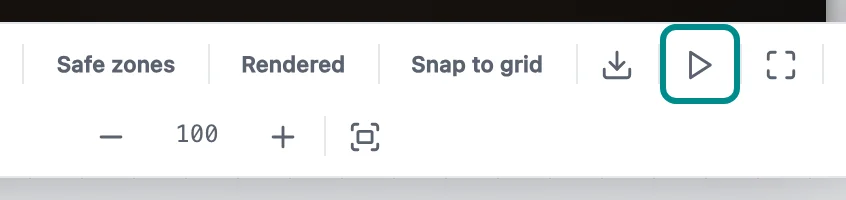
Preview motion sits between the image download and the fit buttons.
The motion timeline opens under the canvas with a track for each animated element. Drag a clip along its track to change when it starts, drag the scrubber to see one moment, and press Reset to go back to the start.

See what your feed gets
Turn on Rendered in the canvas tools to swap the live board for the image your feed gets. On a design with motion or an animated image, a Clip button appears beside Rendered and shows the product's video in place of the still.

If a product has no video yet, a note on the canvas says why, and the still stays on screen.