Editor
Sizes and safe zones
Checked against the app on October 17, 2026
The sizes a design comes in, how to switch the size you are editing, and the safe zones that show what stays clear in an ad.
One design in every size
A template makes its images in up to three sizes: 1:1, 4:5 and 9:16. Once Pinterest is connected, a fourth size joins them: 2:3, Pinterest's own 1000x1500 Pin size.
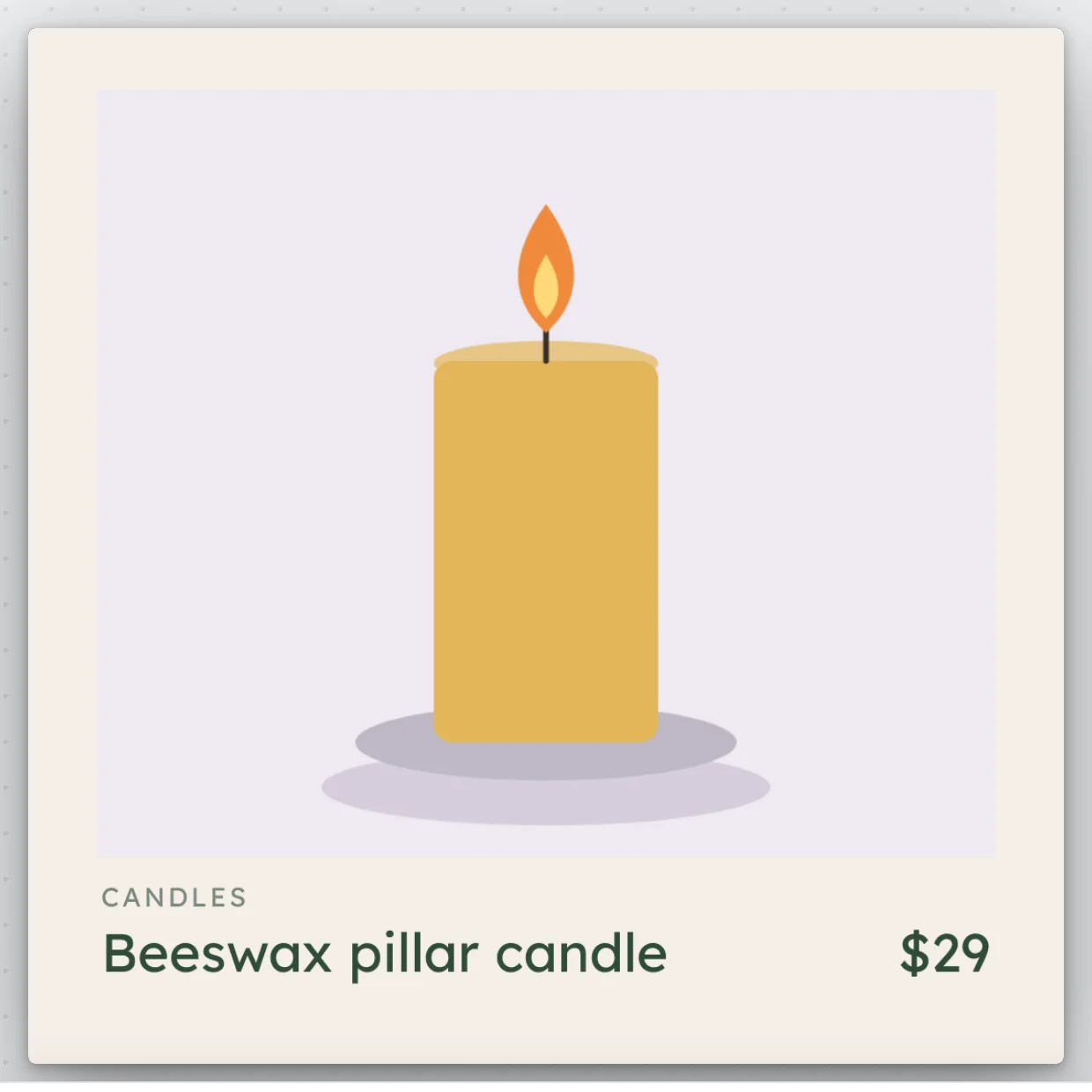
1:1
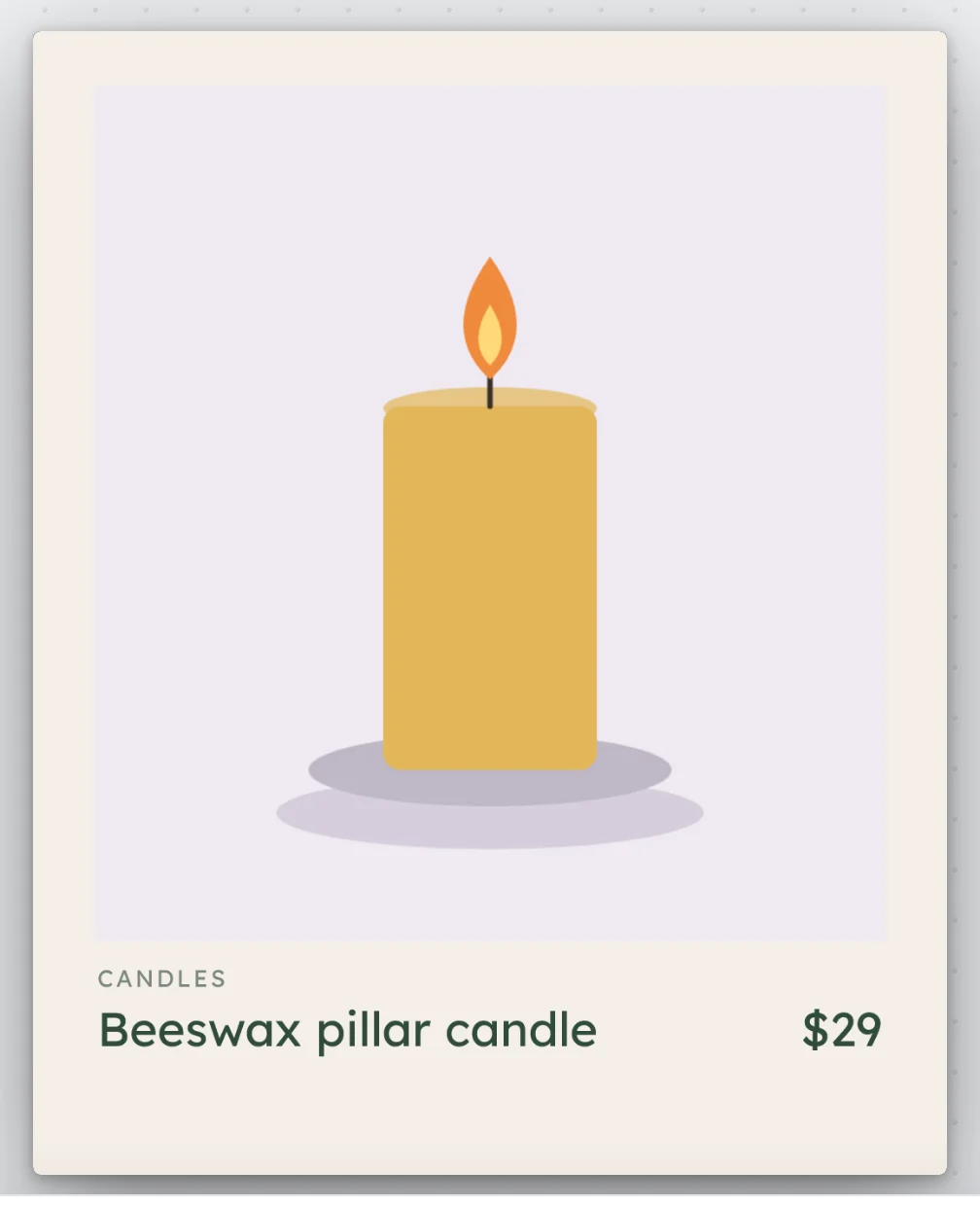
4:5
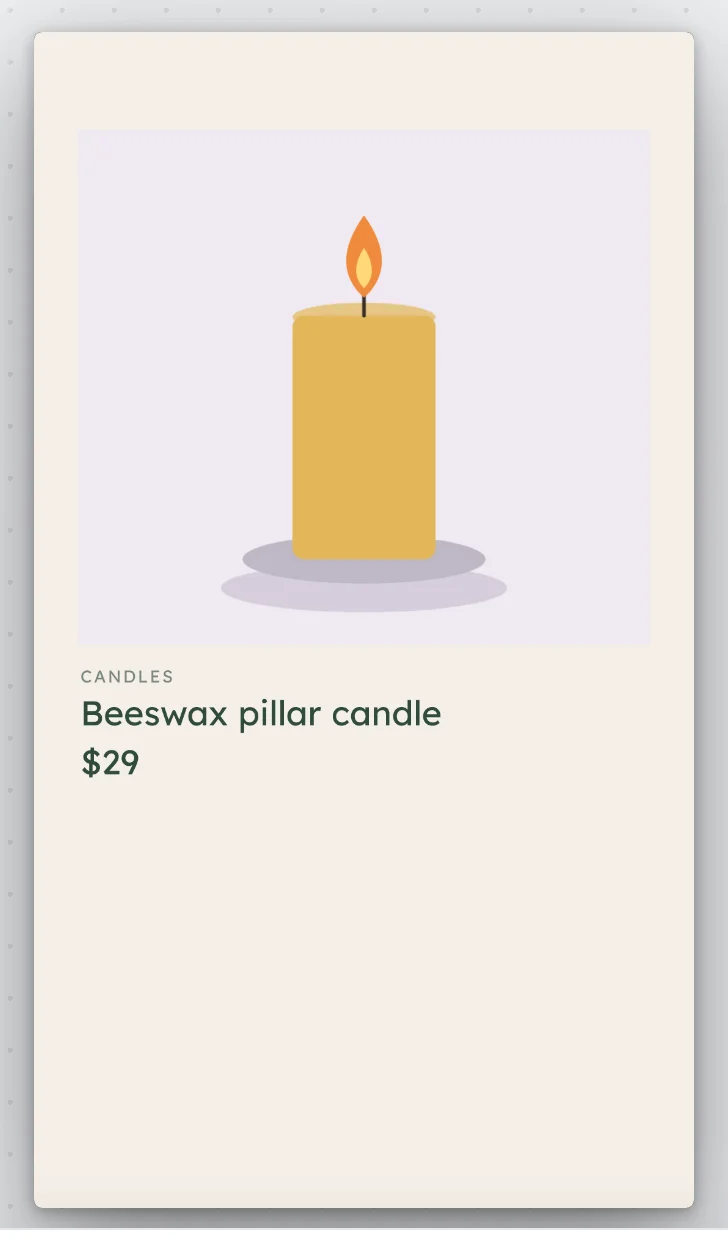
9:16
Each size keeps its own layout of the same elements, so you can move them to suit the shape. Turn on Rendered to see a size exactly as your feed gets it.
Switch the size you are editing
The size buttons in the top bar switch the canvas from one size to another. A size this template does not make reads off beside its name, and Output ratios in the Brand panel turns it on.

Edits you make at 1:1 carry to the other sizes. An edit made at another size changes that size only.
Safe zones
- Turn on Safe zones in the canvas tools under the design.
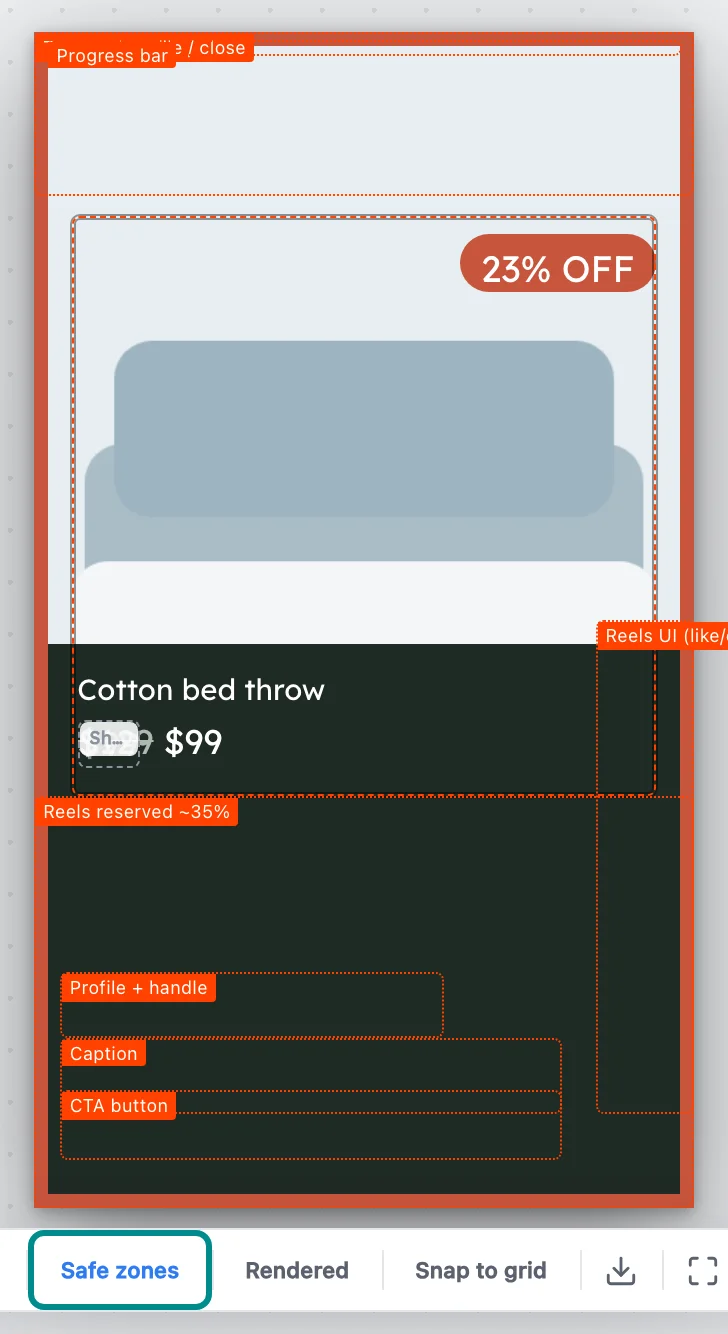
The shaded boxes show what an ad covers at 9:16.
An outline shows the area that stays clear of the edges, and shaded boxes mark where an ad's own buttons and text sit over the image, such as the caption and the call to action on a tall story.
Keep the product, the price and your badges inside the outline, so nothing is covered or cropped in the feed.