Account & billing
The Account page
Checked against the app on October 17, 2026
Manage your own name, photo, sign-in email addresses, password and devices, choose how Adorn looks, switch between your stores, and reach support if you can't sign in.
The Account page
Account, in Settings, holds your own sign-in details rather than your store's. The page opens with Theme, followed by the Profile, Email addresses, Connected accounts and Security cards, with Sign out at the foot of the page.

What you change here is yours alone. The other people at your store keep their own sign-in details, and you keep yours in every store you belong to.
Your name and photo
Profile holds your name and photo, which Adorn shows across the app. Press Upload photo to choose a picture, or change First name or Last name and press Save.
Your email addresses
Email addresses lists the addresses you sign in with, and one of them is marked Primary. To add one, type it and press Add email. Adorn emails a code to that address, and you type the code and press Verify.
Once an address reads Verified, Make primary makes it your main address. Remove takes an address off your account, though not your primary one, so make another address primary first.
Adding an address, changing your primary address or removing one may ask you to confirm it is you before it goes through.
Password, devices and logins
Security is where you Change password, or Set a password if you have always signed in another way. Sign out of other devices is ticked to begin with, so a new password signs you out everywhere else.
Active devices lists where you are signed in and when each one was last active. The one you are using reads This device, and Revoke signs out any other.
Connected accounts shows the Google login linked to your account, if there is one. Connect Google links one, and Disconnect removes it.
Changing your password, revoking a device or disconnecting a login may ask you to confirm it is you before it goes through.
How Adorn looks
- Under Theme, press System, Light or Dark.
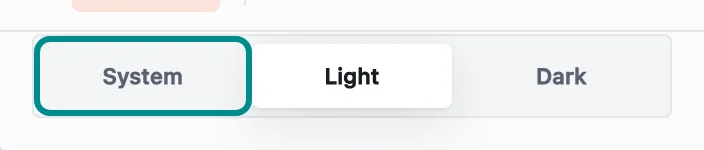
The choice you press is marked as the one in use.
System follows the light or dark setting of your computer. Your choice is saved in this browser only, so another computer or browser keeps its own.
Switching stores
When you belong to more than one store, the top bar names the store you are working in. Choose another store from that list to switch, and Adorn opens that store's templates.
Each store keeps its own templates, settings, team and plan. This browser remembers the store you chose last and opens it next time.
If you can't sign in
If you can't sign in, the Contact support form at useadorn.com/support reaches Adorn without an account. It asks for Your email, Your store (optional) and How can we help?, and Send message works once the spam check under the form finishes.
Once it is sent, the page reads Message sent and gives you a request number to quote if you write to us about it again. The reply comes to the email address you gave.