Account & billing
The Billing page
Checked against the app on October 17, 2026
Read your plan and its limits on the Billing page, start or manage a plan by card or through Shopify, keep track of the stores your plan pays for, and fix a failed payment.
The Billing page
Billing, in Settings, holds two cards. Plan & billing shows your plan, how it stands and how many products and stores it covers, and Stores lists the stores your plan pays for.

Everyone at your store can see Plan & billing. Only an owner can change the plan, open billing or change the stores.
Your plan
Who can do this: Owners only.
The pill at the top of Plan & billing says how your plan stands, such as Trial or Active, beside the plan's name and price. Under it, the card says when the plan renews, or when access ends if it has been canceled, then counts your products against your plan's limit and the stores it covers.
These steps are for paying by card. If your plan is billed through Shopify, you choose it in Shopify instead.
- Choose Monthly or Yearly, then press Subscribe beside the plan you want.
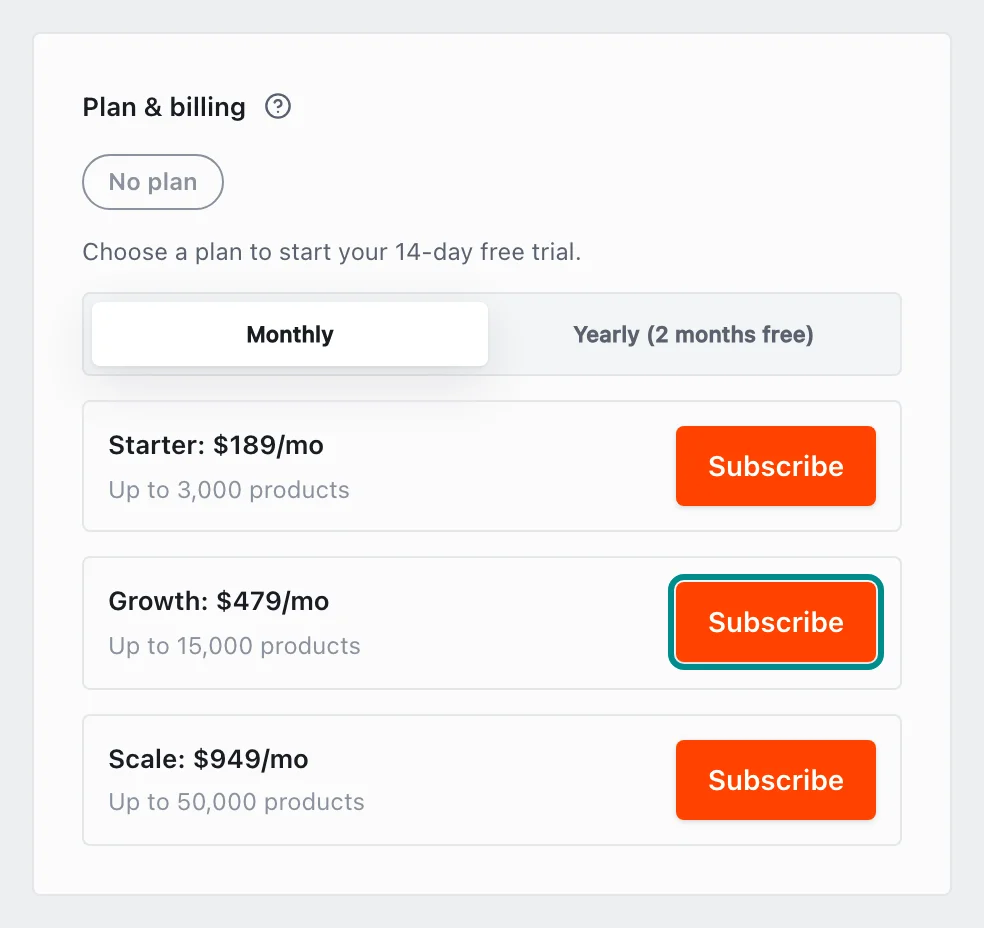
The price beside each plan follows the period you choose. - Fill in your details on the secure checkout page that opens in a new tab. When checkout completes, the card shows your plan.
Every paid plan starts with a 14-day free trial.
If you pay by card, you manage your subscription in the secure customer portal. If your plan is billed through Shopify, you change or cancel it in Shopify instead. Manage billing opens that portal, where you can upgrade, downgrade, update your payment method, or cancel.
The stores your plan pays for
Who can do this: Owners only.
If you pay by card, one subscription serves every store on your account. If your plan is billed through Shopify, each store has its own plan in Shopify. Stores lists each store, with This store beside the one you are in, and says how many stores you hold against how many your plan pays for.
If you pay by card, type the store ID of another store you own under Add a store you own and press Add store. If it needs another paid store, the card says what goes on your next invoice and asks you to confirm first.
Remove takes a store off your account once you confirm with Yes, remove it. Its feed stops serving as soon as it leaves. Your only store can't be removed.
When a payment fails
Who can do this: Owners only.
If a payment does not go through, the pill reads Payment issue and the card gives the date to fix it by to keep your feed refreshing. Press Manage billing to update your payment method.

If that date passes, the pill reads Feed stopped, and your feed stays off until your billing is up to date. If your first payment does not go through, the pill reads Payment failed and you choose a plan again.
Owners are also told in the notifications bell when a payment fails.
Stores that stopped refreshing
Who can do this: Owners only.
If your account holds more stores than your plan pays for, your newest stores stop refreshing and keep showing their last designs. Stores marks each of them Not refreshing.

If you pay by card, press the button that pays for every store you hold, or remove a store, to start them again. The extra stores go on your next invoice, and nothing is charged to your card at that moment. If your plan is billed through Shopify, remove the extra stores, and each one chooses its own plan in Shopify.
Plans billed through Shopify
If your plan is billed through Shopify, you choose and pay for it in Shopify, and Adorn's charges appear on your Shopify bill. You never enter a card in Adorn. A store you install from Shopify is billed this way unless your account already has a plan paid by card, which then stays on your card, or a plan Adorn gives you at no charge. If your account holds more than one store and has no active subscription, Adorn can't link a store you install from Shopify to it, and asks you to contact support. Plan & billing says when your plan is billed through Shopify.
Plan & billing then shows Choose a plan in Shopify before you have a plan, Change plan in Shopify once you have one, and Open Shopify billing when Shopify could not collect a payment. Each opens Shopify in a new tab.
