Templates & design
Community templates
Checked against the app on October 17, 2026
Add a ready-made design to My templates from Community Templates, after you see it on one of your products.
Ready-made designs
Community Templates sits beside My templates on the Templates page and lists ready-made designs. Each card shows the design on one of your products, with who made it and the kind of design it is.

Looking through them changes nothing in your store. A design joins your templates only when you use it.
Preview a design
Select a card to open a larger preview of the design. When it comes in more than one size, the buttons above the picture switch between them. Close, or the Escape key, takes you back to the list.

A preview only shows the design, so nothing is added or saved while you look.
Use a design
- Press Use template on the card, or in its preview.
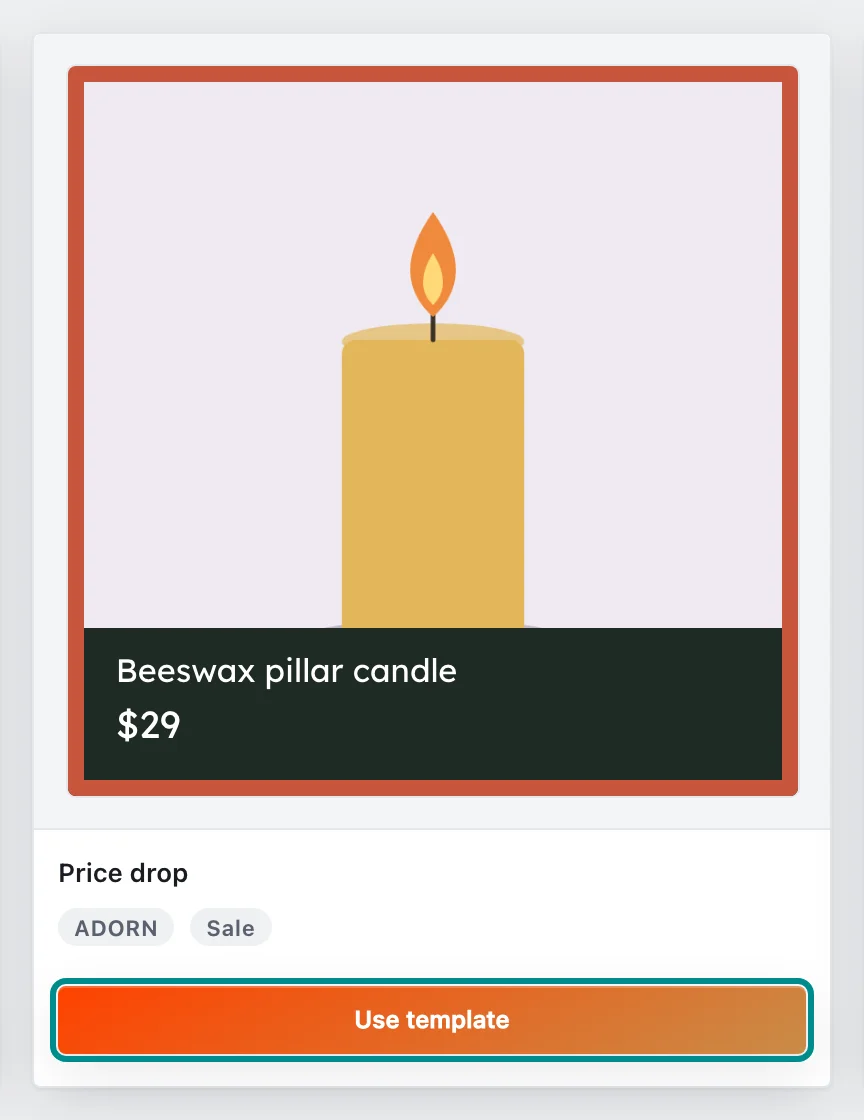
Use template sits under every card, so you can use a design without opening it.
Adorn adds an editable copy of the design to My templates as a draft and opens it in the editor. No rules or products come with the copy, so choose what it applies to before you publish it.