Troubleshooting & FAQ
A product is missing from my feed
Checked against the app on October 17, 2026
What to check first when a product is left out of your feed, and the problem codes that cause it.
What to check first
- In Insights, open Feed health and press the button for the feed the product is missing from, such as Meta. The table under the figures lists each reason products were left out, such as No price or No usable image, with a few examples.
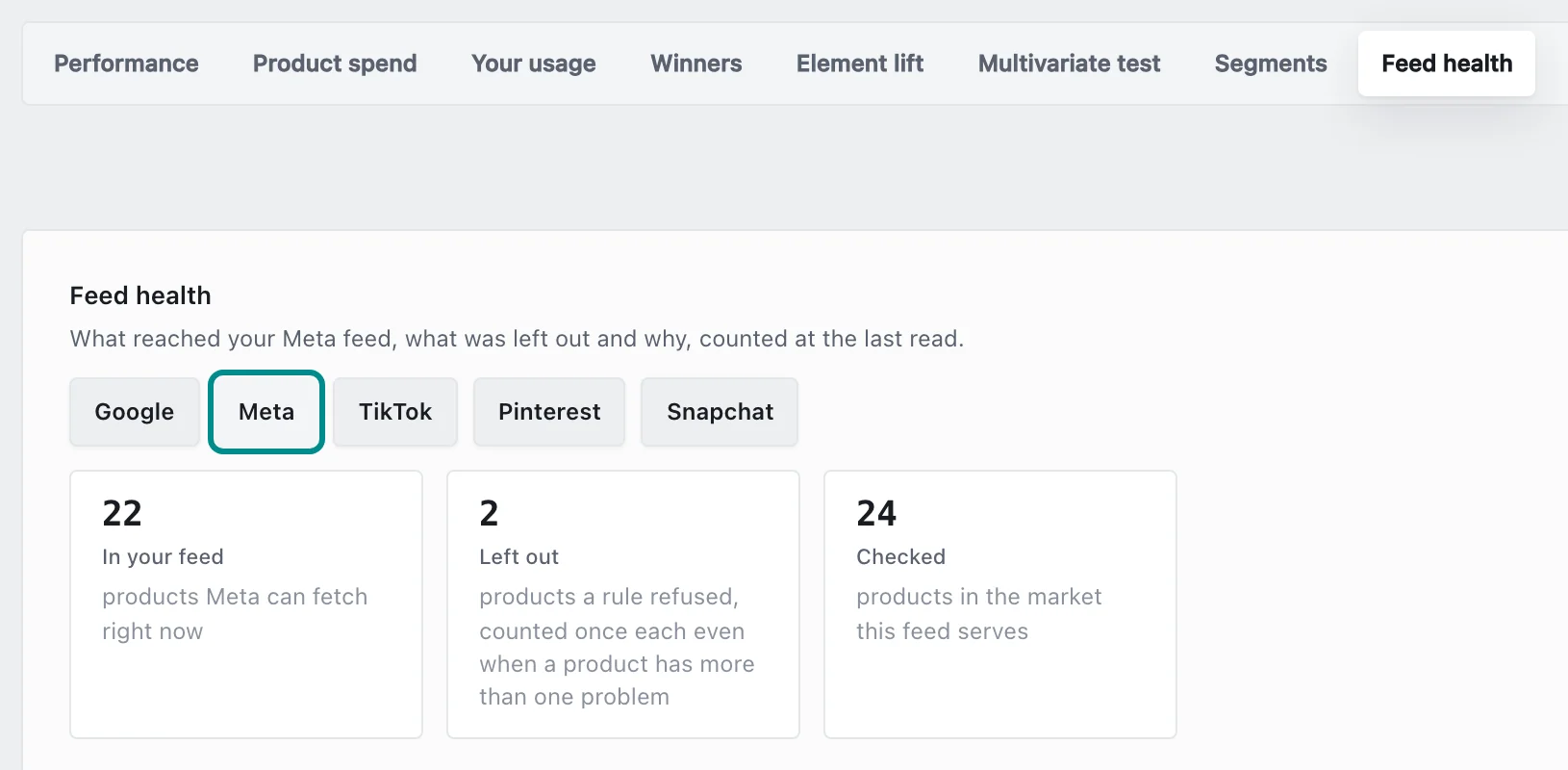
The counts are for the feed whose button is pressed. - In Settings, open Store health and find the Product data is complete row, which counts the products left out because their data is missing.
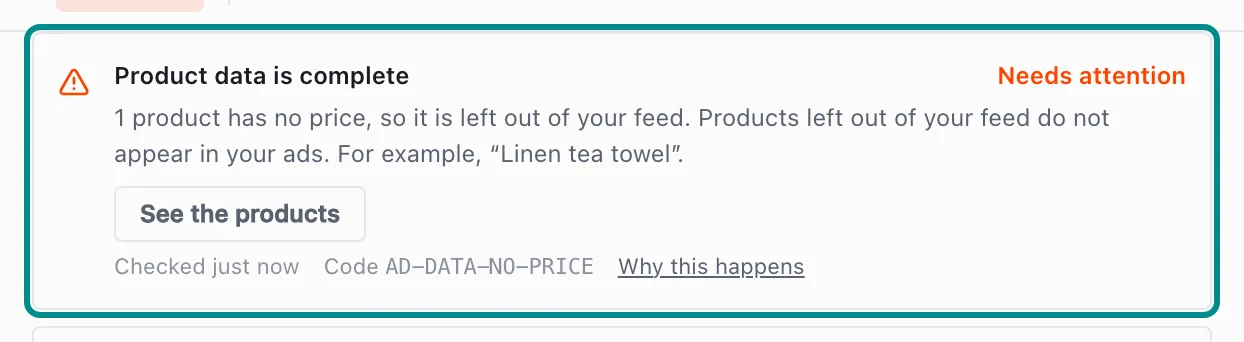
Here some products have no price, and the row names one of them. - If the product has no price, no usable image or no link to a product page, add what is missing to the product in your store.
- Find the Your catalog fits your plan row. If new products were left out because your plan covers fewer products, an owner opens Billing in Settings and changes to a plan that covers more.
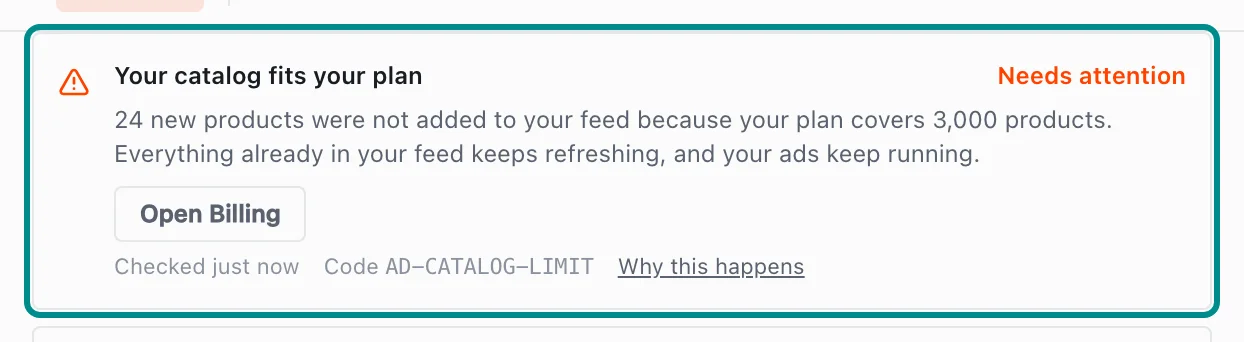
The row counts the new products your plan's limit kept out of your feed. - If you send your designs through DataFeedWatch, check that the product is not excluded or missing there.
Related pages
Problem codes that cause this
Adorn shows one of these codes in Store health, the notifications bell or an alert email when it finds the cause, and each one says what to do.