Troubleshooting & FAQ
A template is not showing on a product
Checked against the app on October 17, 2026
What to check first when a product does not get a template's design, and the problem codes that cause it.
What to check first
- Open Preview catalog in the top bar, press Live winner, and find the product with Search title or SKU. If it is marked Own image, no template applies to it.
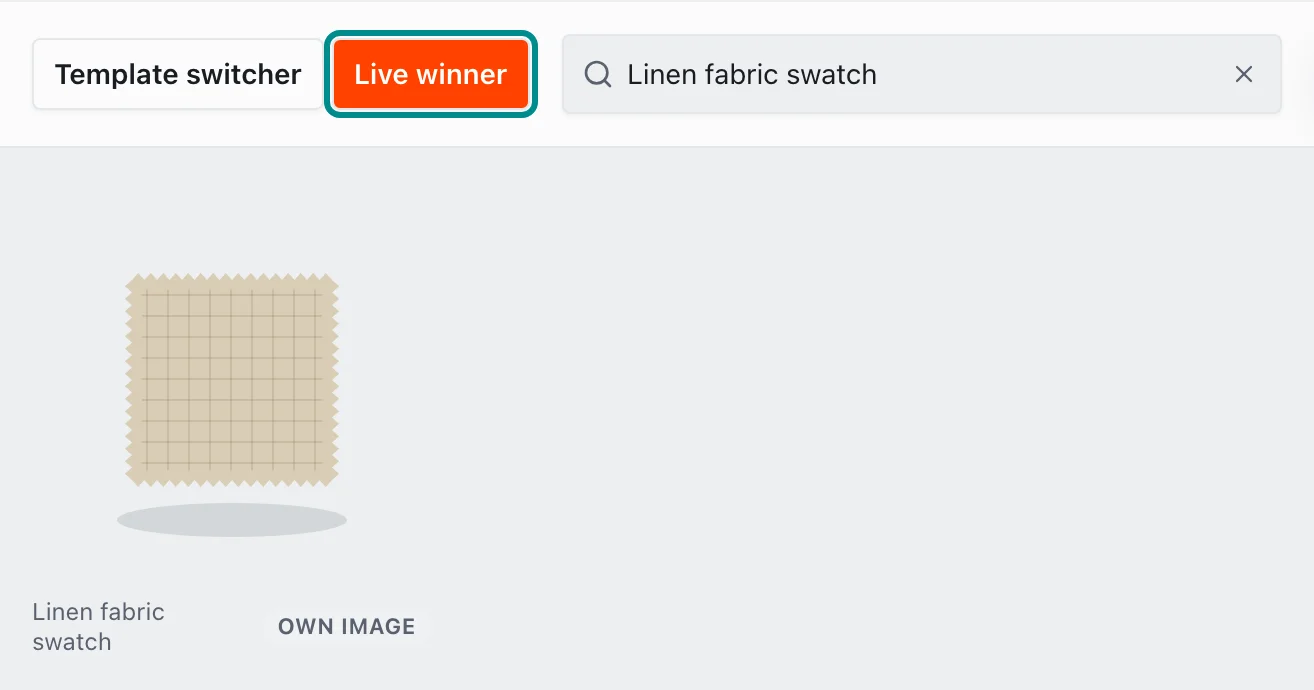
Here the product searched for is marked Own image and keeps its photo. - To give it a design, open a template from Templates and change the rule on its Rules tab so that it includes the product.
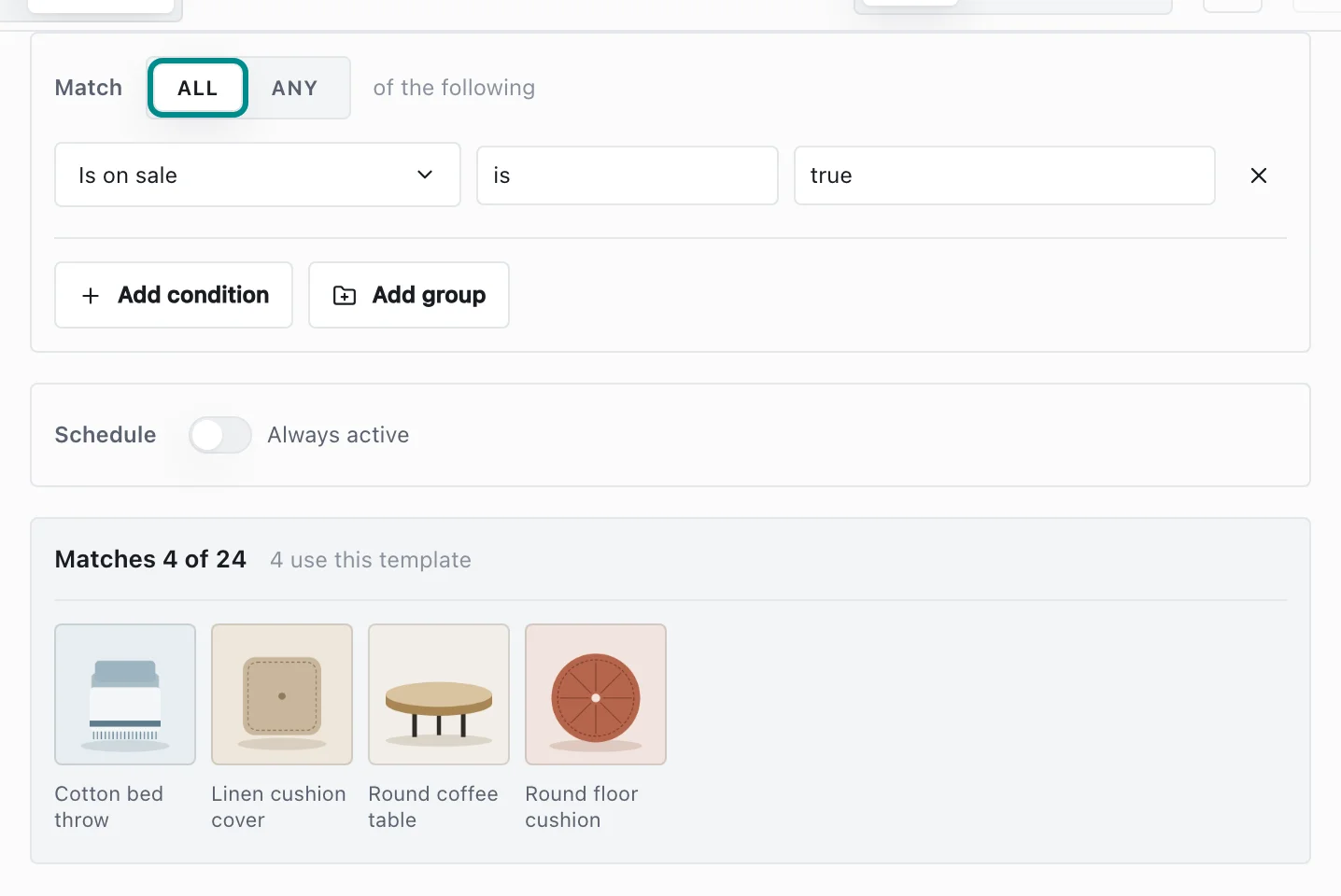
A rule's conditions choose the products a template applies to. - If the product shows another template's design, open What's live in the top bar. The first template that applies to a product wins, so move the one you want higher.
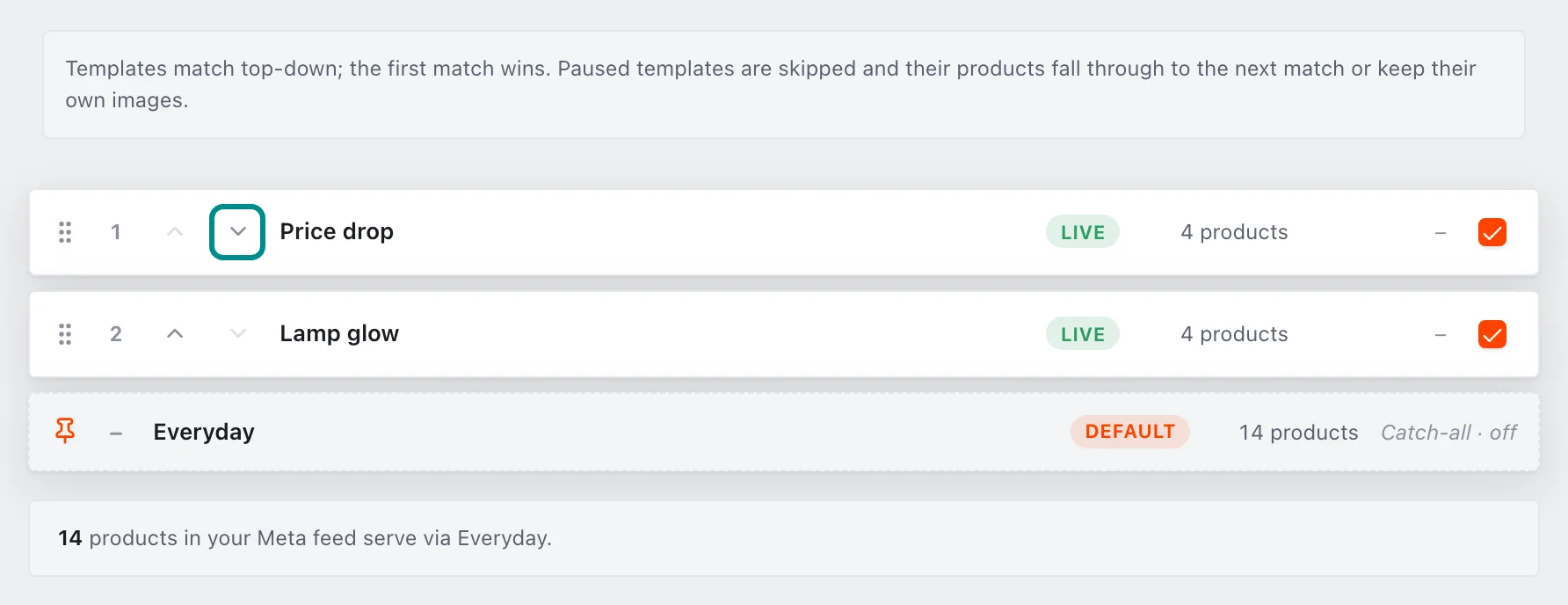
The list is checked from the top down. - In Settings, open Store health and find the Which products get a design row, which counts the products that get a design.
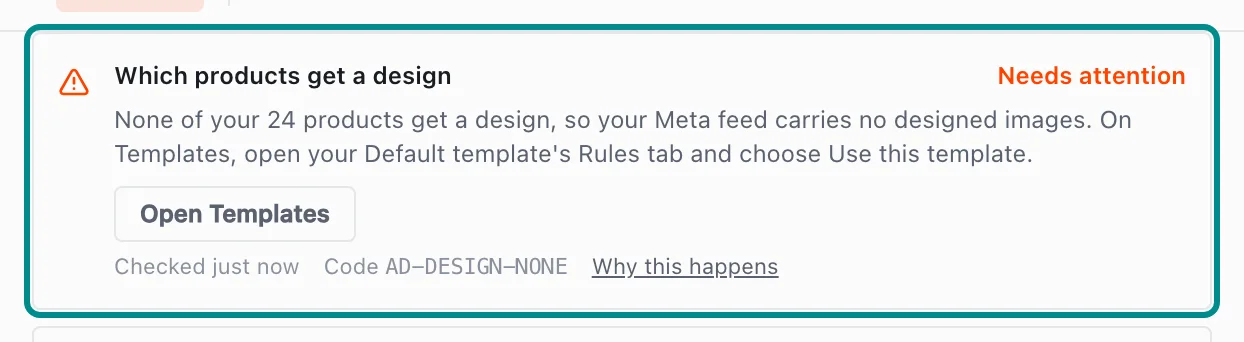
Here none of the store's products get a design.
Related pages
Problem codes that cause this
Adorn shows one of these codes in Store health when it finds the cause, and each one says what to do.