Troubleshooting & FAQ
Adorn lost the connection to my Shopify store
Checked against the app on October 17, 2026
What to check first when Adorn can no longer read your Shopify store, and the problem codes that cause it.
What to check first
- In Settings, open Data sources.
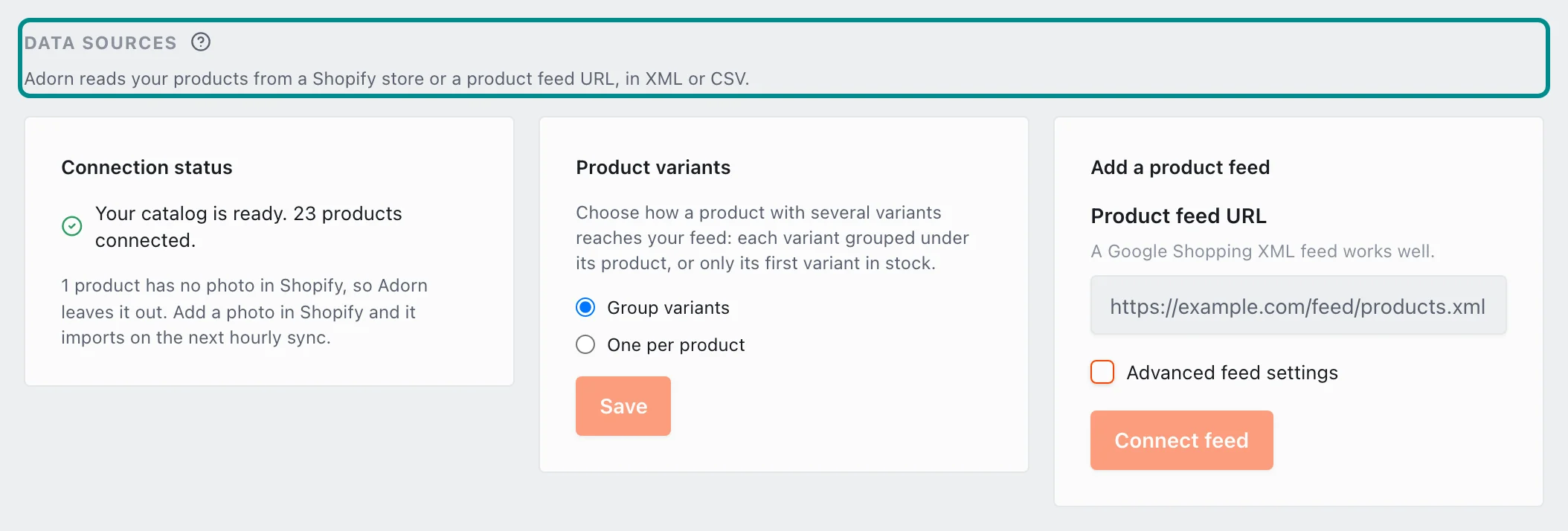
Each card on the page handles one part of where your products come from. - If Connection status says the connection stopped working, an owner presses Reconnect, and the Connect your Shopify store card comes back. Press Connect store and approve Adorn in the Shopify tab that opens. For a store installed from Shopify, the button reads Reconnect in Shopify.
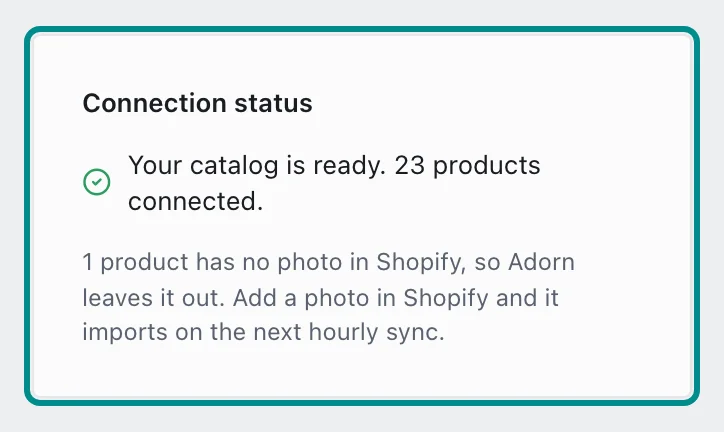
Connection status shows how your Shopify import is going. - Then open Store health in Settings and press Check again to read the Products come in row again.
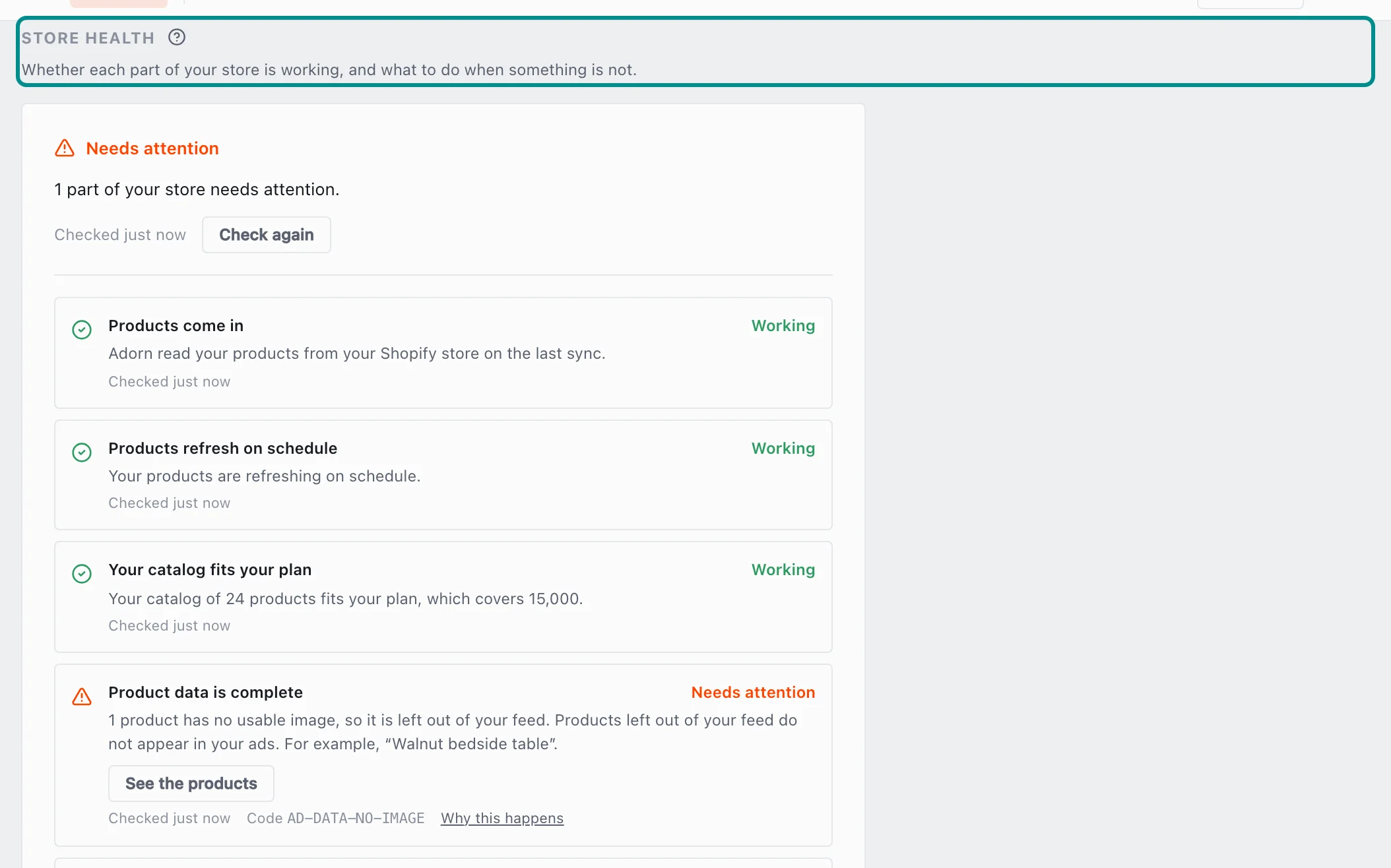
The top of the card says what Adorn found and when it last checked.
Related pages
Problem codes that cause this
Adorn shows one of these codes in Store health, the notifications bell or an alert email when it finds the cause, and each one says what to do.